Read time: 3 Min
Accidentally deleting important files is a common scenario with many users. In most cases, deleted files go to the Recycle Bin, but if you use Shift + Delete or empty the Recycle Bin, they appear to be permanently removed from the system. This scenario is stressful, especially if you delete some important files.
Can You Recover Permanently Deleted Files from Recycle Bin?
Sure, files are recoverable even after the recycle bin is emptied. Files are not really erased from your hard disk once you empty the recycle bin. Rather, they are only transferred to a different place on the computer until they are replaced by other files kept in the computer’s memory.
For this reason, if you take action soon enough to prevent them from being overwritten, you may retrieve objects that have been emptied from the Recycle Bin. Using data recovery software can often help find files that seem permanently lost or recover data from crash computer. Read the blog to know the complete recovery process.
Methods to Recover Permanently Deleted Files from Recycle Bin
There are various ways to recover Recycle Bin files that are permanently deleted. To make the process simple for you, we will mention all the approaches in detail. Let’s begin.
1. Restore Deleted Files from Recycle Bin Directly
If you delete the files and it moves to the bin folder, then you can easily restore your data. All you need to do is;
- Open the Recycle Bin on your desktop.
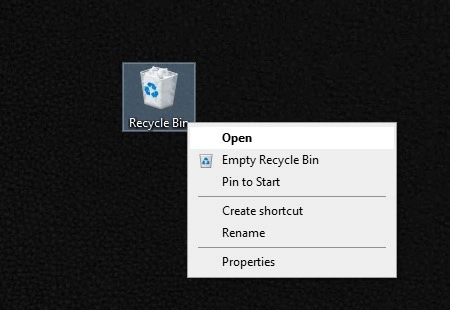
- Browse or search for the file you want to recover.
- Right-click on the file and click Restore.
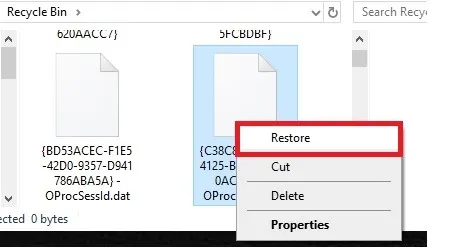
- The file will return to its original location where it was stored before deletion.
2. Restore Files from Backup
Notes: This method recovers your data if backups were created before the files were deleted.
The easiest way to recover permanently deleted files is by using a backup. If you regularly back up your data, restoring lost files becomes simple. Here are the steps;
- Open the Control Panel > Go to System and Security > Select Backup and Restore.
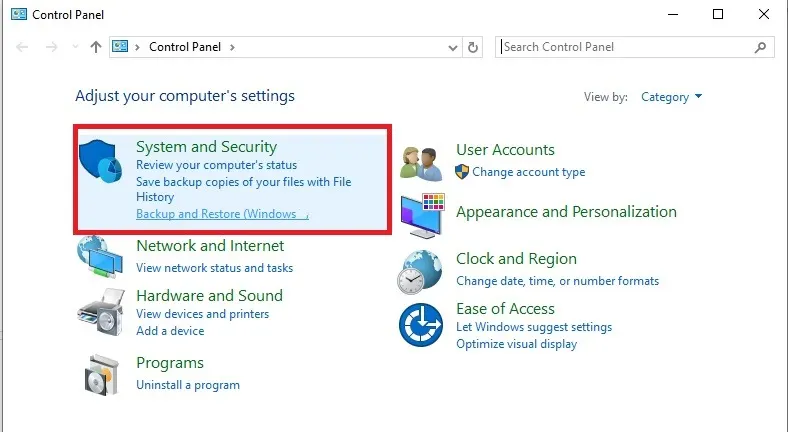
- Click Restore my files.
- Browse the backup and select the files you want to recover.
3. Recover Files Using Previous Versions Option
Note: This method can be effective if system protection or restore points were enabled earlier.
In Windows, the system stores an earlier version copy if you activate this saving option. It will store all the versions when the data is modified or is modified. This option can help restore deleted or modified files. Here are the steps to view and restore the previous version data.
- Navigate to the folder where the deleted file was originally stored.
- Right-click on the folder.
- Select Restore previous versions.
- Choose a version of the folder that contains the deleted file.
- Click Restore.
4. Recover Files from Cloud Storage
Note: This approach works best if you regularly back up your data in cloud-based systems.
If you enable the cloud synchronization features, then you can recover your data easily. Many cloud platforms maintain version history or temporary file recovery options. This feature will help you to restore earlier versions of files even after deletion. Here are the instructions
- Log in to your cloud storage account.
- Navigate to the Trash or Deleted Files section.
- Locate the file you want to recover.
- Click Restore.
5. Use Data Recovery Software
If all the mentioned solutions are unable to recover permanently deleted files from the Recycle Bin, then you can rely on the expert recovery tool. BLR Data Recovery Toolkit will effortlessly recover all the deleted files directly from the Recycle Bin in a few clicks. All you need to do is open this tool and choose the Recycle bin option, and the tool will start scanning it, and after that, you can recover your files. Try out the demo version and view what deleted files you can recover.

Conclusion
Permanently deleting files or emptying the Recycle Bin can be stressful, but it is possible to recover the data. In most cases, deleted files often stay on the drive until it is replaced by a new set of data. By acting quickly and using backups, previous versions, cloud storage, or data recovery software, you can recover permanently deleted files from the Recycle Bin.