

Read time: 4 Min
If your PC or laptop is dead and it is not booting up, then your data is at risk. All your important data from years, like photos, videos, Excel files, documents, and folders are inaccessible. Your top priority should be to recover data from a dead PC in spite of whatever caused its failure. This post explores the root causes leading to unresponsive Windows systems and presents the three most successful approaches to recover data from dead SSD drives.
What are the Main Causes of Booting Errors in PCs?
Here are the various reasons that lead to booting errors in a PC:
- An operating system malfunction can prevent the PC from starting up. Attempted access to an incorrect memory address by the OS results in General Protection Fault (GPF) errors. Another common error that users encounter in infinite loop error. During this condition, the system will not crash but will function unresponsively, which requires a system reset. System files can become corrupt or deleted, or registry file alterations can happen as additional causes.
- When you get applications or media files from untrusted sources, it may harm your PC. Operating systems not responding or malfunctioning issues can be seen due to viruses or malware. Upgrading your firewall settings, combined with regular installation of an antivirus/malware tool, protects your system against harm.
- BIOS errors can prevent your operating system from loading due to corrupted Basic Input/Output System settings. Enter the BIOS setup and verify if the data has successfully been rewritten. Perform a BIOS reset followed by a PC restart for any detected BIOS errors.
Ways to Recover Data from Dead PC
Follow the given methods to recover data from a dead PC and get access to your important files, documents, images, videos, etc.
Method 1: Use BIOS Utility to Fix Dead PC File Recovery Issue
Sometimes the PC is not completely dead; it just fails to boot due to system file damage, malware infection, software glitches, and DLLs. BIOS utility tools built into your system enable file recovery in these situations. Follow the steps below:
- Use the USB drive made using the Windows Media Creation Tool to plug into the unresponsive system.
- Boot your system while pressing F12 until a boot menu appears, where you should select the USB installation media.
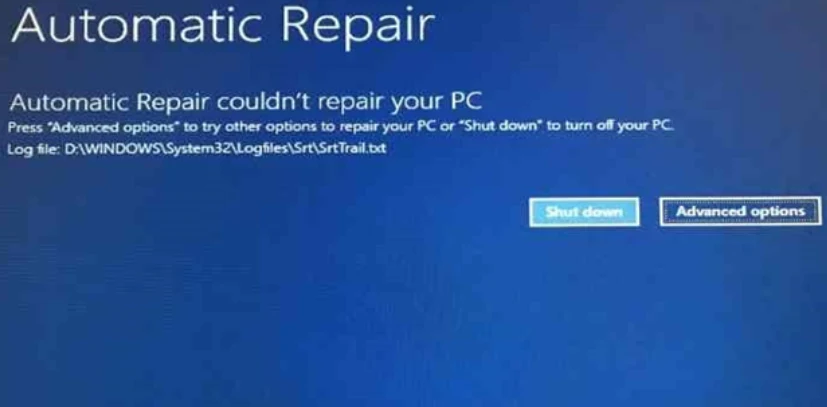
- It automatically proceeds to the Automatic Repair setup.
- Press the Advanced Options button if Automatic Repair did not manage to fix your PC.
- Click Troubleshoot.
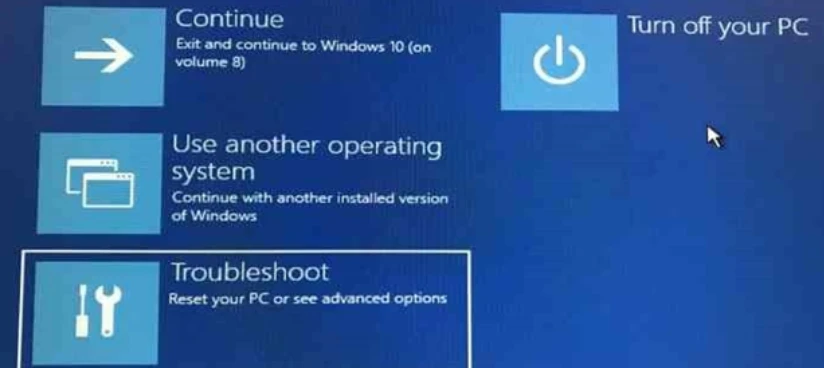
- Click Advanced Options.
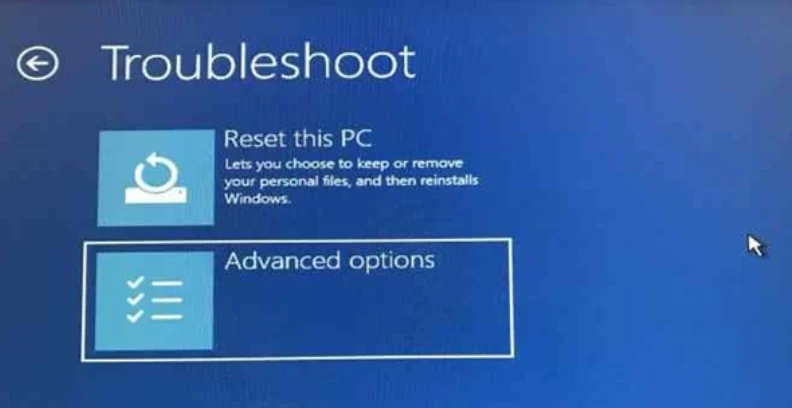
- Select Command Prompt.
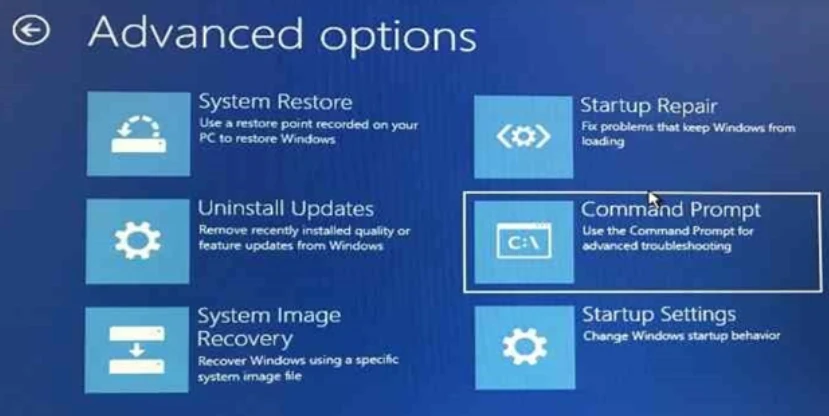
- The Command Prompt window appears. Type notepad.exe and hit Enter.
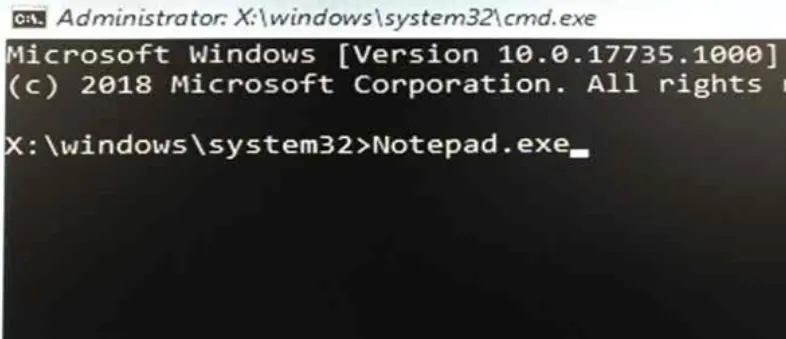
- Navigate to the File menu to get access to the Open window.
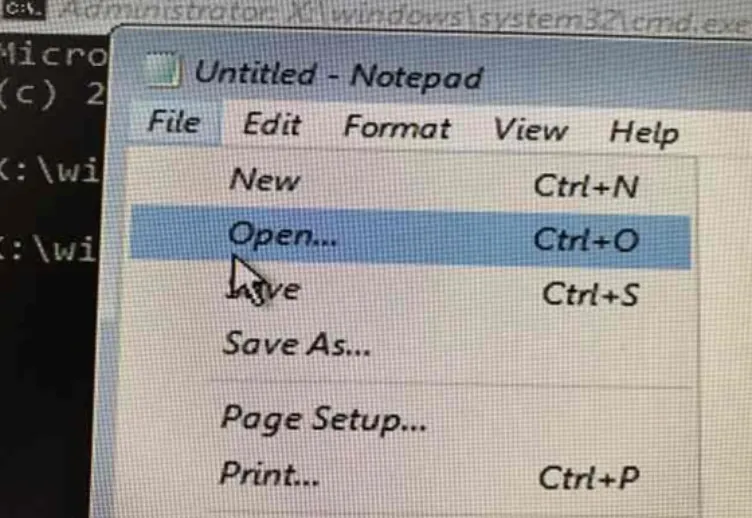
- Use This PC as the sub-menu to select files and folders that need recovery.
- Users can modify file selection from TXT to ALL FILES to access files via the interface.
- Click/right-click on the file you selected to open the menu, then send it to the chosen external storage drive through the menu.
- If your data resides in the C: drive, this file recovery method may not succeed. The Windows setup process will cause permanent data erasure due to formatting on the C: drive.
Method 2: Use a Hard Drive as an External Drive
When a dead PC is not booting up, you can use its hard drive as an external drive to complete the following process.
To attach the hard disk drive to a working PC or laptop, simply detach or remove the HDD from the non-bootable PC/laptop. To transform a hard drive into an external storage device, you should connect it with either a SATA-to-USB adapter or an external HDD container. A PATA/IDE 3.0 interface-compatible PC requires a matching cable to link the hard drive.
- Open Disk Management.
- You should add a drive letter to the hard drive when the system discovers it, but displays RAW status.
To change the drive letter:
- Right-click the connected drive volume from the list of options.
- Select ‘Change Drive Letter & Paths….’
- Open the drop-down menu and select the desired letter through the Click Add process.
- After clicking OK, the hard drive will appear in File Explorer.
Your system may ask to format the RAW hard drive after assigning a letter or when trying to access it. Do not select the Format button because it will permanently delete all your data.
Method 3: Use Professional Software to Recover Data From Dead PC
During your attempts to solve boot issues, you may accidentally delete your essential files. Use the BLR Data Recovery Toolkit for recovery purposes to rescue all of your vital system files, as well as image, video, and document data. Users can recover data from dead PC file through the bootable recovery drive feature of this software when their PC refuses to start.

Conclusion
One encounters a significant risk of data loss when the system fails to start, resulting in a blue screen of death BSOD) messages or physical hardware damage. Storing backup copies of your data will help you avoid data loss risk. When your system stops working suddenly, there is a reason to be alarmed. You can connect your computer’s hard drive to the system to access your files while using the flash drive to update your computer settings.
Using BLR for bootable drive recovery professionals for Windows offers you the most effective and protected way to recover data from a dead PC file while the system won’t start up. You can easily access this software because it delivers advanced recovery features to repair failed Windows computers.