

Read time: 3 Min
Before we move ahead, firstly, users need to understand the MBOX format that holds all mailboxes in a single file. On the other hand, cPanel is a web hosting control panel that gives you a simple GUI and automation tools that make email management simple for all users. With the right steps, users can easily import MBOX to cPanel account.
Why Import MBOX to cPanel Account?
Importing MBOX emails into cPanel account can be useful because many email clients, such as Thunderbird, Apple Mail, Eudora, and others, store emails in MBOX format. While cPanel’s webmail can easily open, access, or manage emails directly on the server.
- If anyone is moving from a desktop email client to cPanel, then users can access or open old email online without relying on email clients.
- Once users import MBOX files to Roundcube webmail account, they can access their email anytime, anywhere, not unlike the MBOX format.
- When users switch email to hosting providers and then access or manage MBOX files, it becomes better in cPanel.
- MBOX files can be easily searched online, and users can easily manage them within cPanel’s webmail applications.
How to Import MBOX to cPanel Webmail Manually?
Step 1: Set Up cPanel Email Account in an MBOX-Compatible Client
Since cPanel does not support direct MBOX uploads, configure the cPanel mailbox in an email client that can read MBOX files, such as Mozilla Thunderbird.
- Open Thunderbird on your system.
- Navigate to Account Settings → Account Action >> Add Mail Account.
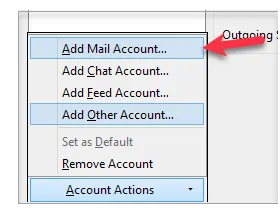
- Enter your cPanel email address, password, and display name.
- Choose automated Configuration and start the configuration process.
Step 2: Import MBOX File
Once the cPanel email account is connected, import MBOX to Thunderbird, and after that, it is easy to move it to the cPanel mailbox. Here are the steps:
- In Thunderbird, open Add-ons and Themes → Extensions.
- Search for and install ImportExportTools NG, then restart Thunderbird.
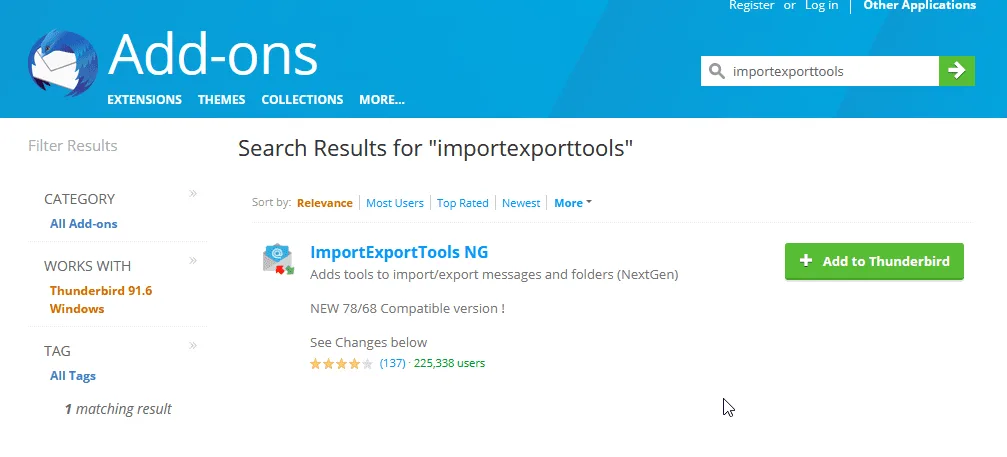
- Right-click on Tools option from the menu bar and select: ImportExportTools NG → Import MBOX File.
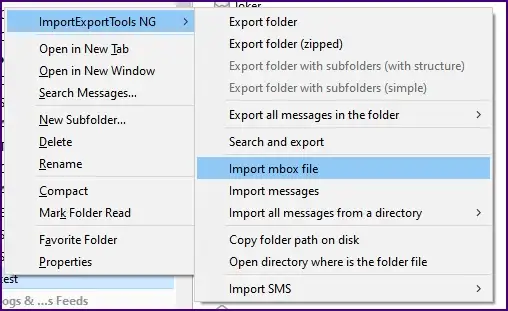
- Select the required MBOX file from your system.
- The imported emails will appear under Local Folders.
- Select all emails using Ctrl + A.
- Drag and drop the selected emails into the desired IMAP-connected cPanel folder (Inbox or a custom folder).
- Thunderbird will automatically synchronize and upload the emails to the cPanel server.
Although using this manual solution, you can import MBOX emails to cPanel mailbox, but there are a few limitations.
- A corrupted or damaged MBOX file can’t be imported manually.
- Time-consuming process with multiple manual steps that need to be followed.
- Dependent on stable internet and IMAP sync, otherwise there will be data loss.
- There can be chances that you can face the Thunderbird Crashing/Freezing issue.
- This solution requires technical knowledge and manual effort.
How to Import MBOX to cPanel Automatically?
If users want to simply import MBOX to cPanel account, then they can use the BLR MBOX converter tool. This application easily imports any size MBOX file or folder to a cPanel account. MBOX converter tool works with all Windows and MS Outlook editions.

Another feature of this application is that users use this tool to convert MBOX to PST, PDF, EML, EMLx, and many other formats. This tool also uploads MBOX files into Gmail, Microsoft Office 365, Thunderbird, Apple Mail, and other accounts without needing the MBOX-supportive email client. Download the free version of the software to know how it works.
Conclusion
This blog explains simple ways to import MBOX to cPanel using manual and professional methods. The manual process is lengthy and requires technical steps, while the professional method allows users to import MBOX files into cPanel quickly without size limitations. This guide helps users migrate MBOX data easily and securely.