

Read time: 3 Min
Outlook stores all mailbox data in a PST file that can be accessed only with Microsoft Outlook. So what a user would do if they need to share emails with non Outlook user. Microsoft Outlook itself provides a solution to this problem, as it allows users to save emails to HTML format. The HTML format is platform-independent and can be accessed with any browser without the need for Outlook. In this blog, we are going to learn different methods to convert PST to HTML. We will also learn different scenarios when users need to convert PST emails to HTML, and various limitations of PST to HTML conversion.
Why do users Convert PST to HTML File?
There are multiple reasons why users choose to convert PST emails to HTML, a few of them are:
- Outlook Not Required: HTML emails are accessible with any web browser, like Chrome, Firefox, or Edge.
- Basic sharing: PST saves all emails in one place, while saving emails to HTML format allows the user to share individual emails.
- Cross-device: HTML is supported across Windows, Mac, and even Linux.
- Storage: HTML is lightweight, and storage becomes very easy over the long term.
In general, conversion is the wise choice if you wish to open PST emails in HTML format. Let’s explore the top 2 methods to convert PST to HTML, step by step.
Manual Method – Convert PST to HTML Using Outlook
Microsoft Outlook provides a built-in feature to export PST file data to HTML format. Follow the steps mentioned below to perform the task:
- Open MS Outlook
- Select the mail you want to save to HTML format
- Go to File and Click Save As
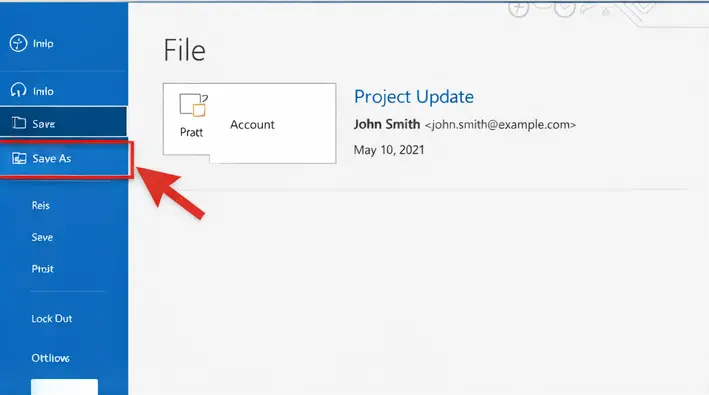
- Select the destination.
- Choose HTML as an option and click Save.
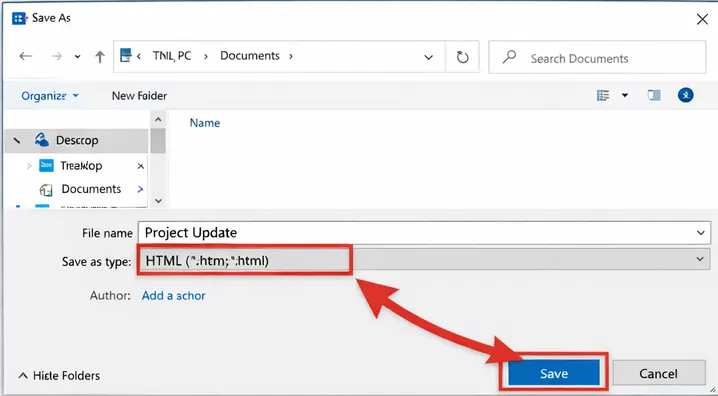
With the steps mentioned above, you can easily save an email to HTML format. However, you have to perform these steps multiple times for each email.
Limitations of Manual Convert PST File to HTML
There are a few limitations of the manual method for exporting a PST file to HTML. Here are some of the common limitations that users face:
- The user has to repeat the same steps multiple times.
- The manual method is not suitable for bulk conversion.
- Email formatting may differ in the resultant HTML file.
- No option available to convert the whole folder.
Therefore, the need for a professional PST to HTML Converter arises to save users from repetitive process thus saving a lot of time.
Method 2: Professional PST to HTML Converter
As we know PST file contains important data, and using a manual method to convert PST to HTML may put the crucial data at risk. A professional PST to HTML converter is the best option if you have a large number of emails to save. The BLR PST Converter is the best solution to save PST emails to HTML format. PST Converter tool is designed to perform PST to HTML conversion in bulk, maintaining original properties and formatting of emails. Moreover, this PST converter also allows you to save PST to PDF, MBOX, EML, etc.

Conclusion
Many Outlook users prefer to save PST emails to HTML format as HTML files are more compatible and easily accessible. HTML files can be opened with any web browser without the need for Outlook to be installed. We have discussed both the manual method and the automated method to convert PST file to HTML. If you have a small number of emails to save, you can use the manual method, or take the help of a professional PST to HTML Converter for a large number of emails.