Read time: 3 Min
Outlook for Mac emails are stored in an OLM file that can’t be accessed outside the Outlook environment. That’s why users need to convert OLM files to a format that is universally accessible and versatile. PDF is one such format that can be opened on any device without the need for any specific software. Whether it is a Windows system or a Mac, PDF files can be opened easily. In this blog, we will discuss two easy methods to convert OLM to PDF file instantly. So follow the instructions and convert OLM emails to PDF format.
Why Convert OLM Files to PDF?
There are various reasons why users choose to convert OLM files to PDF format. Here are the most common reasons:
- Compatibility: PDF format is a widely accepted format that can be accessed on any device or operating system.
- Easy Sharing: PDF files can be opened and viewed on any device, that make it suitable for sharing and transferring across platforms.
- Storage: PDF files take less storage as compared to OLM files, making it the preferred choice to store large OLM emails.
- Legal Acceptance: PDF format is accepted by courts for legal evidence, as PDF files can’t be edited. Therefore, OLM files are saved to PDF format for legal purposes.
- Security: Users can password-protect a PDF file to prevent unauthorised access. It helps users to protect important data securely.
Manual Method to Convert OLM to PDF
The manual method to convert OLM to PDF involves 2 steps. Follow the steps below:
Step 1: Import OLM File to Outlook for Mac
- First of all, open Outlook for Mac.
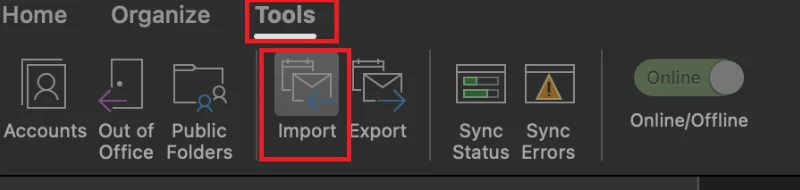
- Click on File > Import.
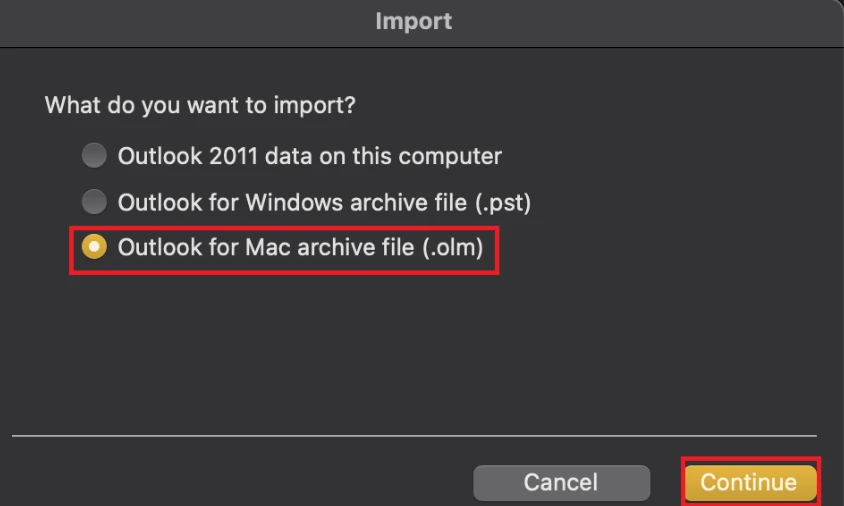
- Now, choose the Outlook for Mac archive file (.olm) and click Continue.
- Select the OLM file to import.
Step 2: Use Print Option to Save as PDF
- Open Outlook for Mac.
- Click the folder where you imported the OLM file.
- Double-click on the email you want to save to PDF.
- Click File > Print.
- Select the option Save as PDF.
- Choose the destination where you want to save the PDF file.
Limitations of the Manual Method
The manual method to convert OLM emails to PDF has a few limitations, which are listed here:
- The batch conversion is not possible in the manual method, which means a user has to perform the same repeatedly for each email.
- The contacts, calendars, notes, tasks, etc., can’t be saved to PDF formats using the manual method.
- The manual method can be performed only when Outlook for Mac is installed.
- Sometimes, email metadata like Sender, Receiver, Date, and Time gets lost during manual conversion.
- Email formatting and folder hierarchy are not maintained in manual conversion methods.
We have listed a few limitations of the manual method to convert OLM to PDF. To overcome such limitations user can choose a professional OLM to PDF Converter tool suggested in the next step.
Automated OLM to PDF Converter Tool
For quick and safe OLM to PDF conversion, you can try the professional, fully automated BLR OLM Converter Tool. The advanced OLM Converter tool is designed to convert multiple OLM emails to PDF format while preserving the original email properties. There is no need to install Outlook for Mac; users can import OLM files directly into the software and save emails as PDFs.

Conclusion
In the above article, we have discussed the manual method and a professional tool to convert OLM to PDF. Though the manual method is free to use, it is time-consuming as the same steps have to be repeated again and again for each email. Moreover, there is a risk of data loss in the manual methods. On the other hand, OLM Converter is a reliable solution that can perform bulk email conversion, preserving the original properties and formatting of emails intact. It’s up to the user which method to choose according to their requirements.