



Read time: 3 Min
MBOX is a popular file format among various email clients. However, you can’t open an MBOX file without these applications. In such cases, converting MBOX emails to a format that does not require any dependency is necessary. In that situation, the best choice is to convert MBOX to CSV file.
Before we move ahead, let’s learn about the benefits of MBOX to CSV conversion.
Why Need to Convert MBOX to CSV Excel File?
Here are a few benefits of converting emails from MBOX file into Excel Sheets. Here are the reasons:
- Easy data management: Spreadsheet applications such as Google Sheets and Microsoft Excel make it simple for users to extract or examine CSV files.
- Easily imported into database: CSV files are a widely used format and they can also be opened or accessed in multiple apps like CRM or business applications.
- Lightweight Format: CSV files can be easily filtered, rather than MBOX files. This file format does not take up too much space in the system.
- Simply share: Anyone can easily share a CSV file once the MBOX file is converted because it doesn’t need any email client to open emails.
- Backup or Archiving: Emails that are saved in CSV can be maintained for long-term archives.
- Better availability: Unlike the MBOX file, a CSV file can be easily opened with multiple platforms or operating systems without installing a specific email application.
- Quick Filter: Email data can be filtered once it is converted to CSV, such as specific emails, subject, sender, recipient, date, etc.
- Flexibility: Converting MBOX files into CSV for Excel also gives you the flexibility to migrate email into other systems without support for the MBOX format.
- Easy tracking: Another feature of a CSV file is that it can be easily analyzed by using tracking communication patterns or extracting statistics.
Here are a few reasons why users want to export MBOX emails into CSV file. Now, let’s talk about how the MBOX to CSV conversion completed.
How to Convert MBOX Email to CSV File Manually?
Manually, you can convert your emails from MBOX files into Comma-Separated Value (.csv) using the Thunderbird client. Here are the instructions;
- Launch Thunderbird on your system.
- Go to Tools and select ImportExportTools NG > click on Import MBOX Files.
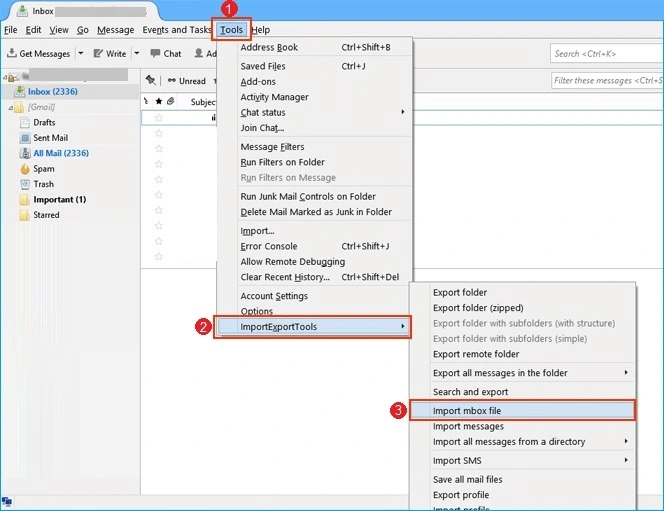
- Choose the Import One or More MBOX Files option.
- Locate the file and click Open to import MBOX to Thunderbird profile.
- Restart Thunderbird to apply the changes.
- Right-click on the file that you imported from a MBOX folder.
- Select ImportExportTools NG from the menu.
- Click Export All Messages in Folder, then choose the Spreadsheet (CSV) option.
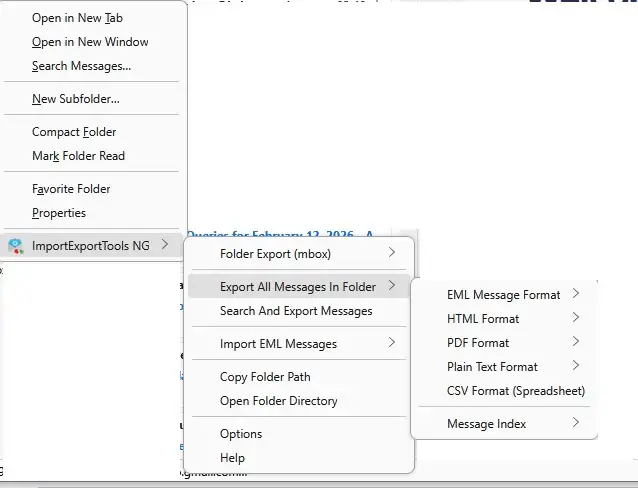
- Select a location to save the converted CSV file.
Done! Here you manually convert MBOX emails into CSV format, but with a few limitations.
- The manual process is time-consuming and requires multiple steps.
- It depends on third-party email clients like Thunderbird, which must be installed and configured.
- Not suitable for converting large or multiple MBOX files at once.
- High chances of data loss or formatting issues during the conversion.
- Attachments can’t be properly extracted when converting MBOX to CSV manually.
- Requires technical knowledge to use add-ons and manage settings.
- No option to selectively export specific emails or folders easily.
How to Convert MBOX to CSV in Bulk?
If you need to convert MBOX to CSV and don’t want to deal with complex steps, we honestly recommend the BLR MBOX Converter. It’s designed to keep things simple, even if you’re not very technical. Just install the software, add your MBOX file using the Add File or Add Folder option, and you can preview your emails to make sure everything looks perfect before moving ahead.

After that, choose CSV as the output format, pick the location where you want to save the file, and click on Convert. That’s it. In just a few moments, your emails will be exported to CSV format with all the important details like sender, subject, date, and other information safely preserved. It’s a smooth, stress-free way to get the job done without worrying about data loss.
Conclusion
Exporting MBOX files to CSV on Windows can be an exhausting task. If users know how to work with the free method, then they can transform their mailbox files to CSV. Nevertheless, in this world, millions of users still don’t know how to use Python to convert MBOX to CSV. If you are one of them, then don’t worry, use the suggested MBOX to PST converter solution to export MBOX emails to CSV with attachments. This solution will be helpful to convert all MBOX files to CSV.




