BLR Zimbra Converter is a powerful and reliable software designed to help users easily convert Zimbra mailbox data (TGZ files) into multiple file formats and email clients. This tool simplifies the complex process of email migration while maintaining data integrity and structure.
It is a professional email migration and backup solution designed to convert Zimbra TGZ files into multiple formats and email platforms with complete accuracy. It is widely used by individuals, IT professionals, and organizations to simplify complex Zimbra data migration tasks.
Key Features:
- Multiple Export Options: Convert Zimbra TGZ to PST, EML, MSG, MBOX, PDF, and more. After conversion, it is easy to access your emails on different platforms.
- Direct Migration: Easily migrate Zimbra emails to popular platforms such as Outlook, Thunderbird, and other email clients. Additionally, the software also import TGZ to Gmail, Office 365, and many webmail servers.
- Preserves Data Integrity: Maintains original folder hierarchy, email properties (To, From, Subject), and attachments during conversion.
- Batch Conversion: Allows users to convert multiple Zimbra files at once, saving time and effort.
- User-Friendly Interface: Designed for both technical and non-technical users with simple steps and easy navigation.
- Selective Conversion: Option to preview and choose specific emails or folders before converting.
Software Installation
-
Firstly, download the software on your Windows from the given link https://www.blrtools.com/zimbra-converter.html
Or you can download using this link https://www.blrtools.com/dl/blr-zimbra-converter-wizard.exe
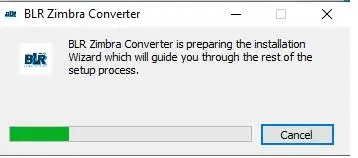
After that, install the software. Here are the steps.
-
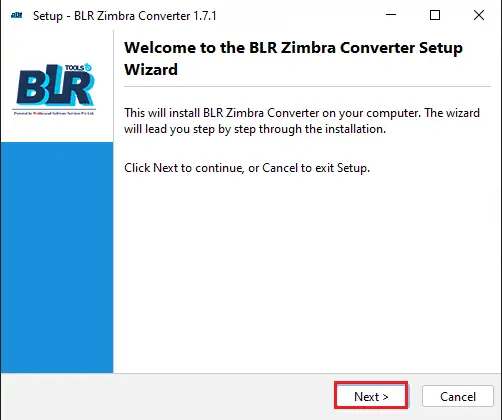
A welcome window will appear; click on continue to start the installation process.
-
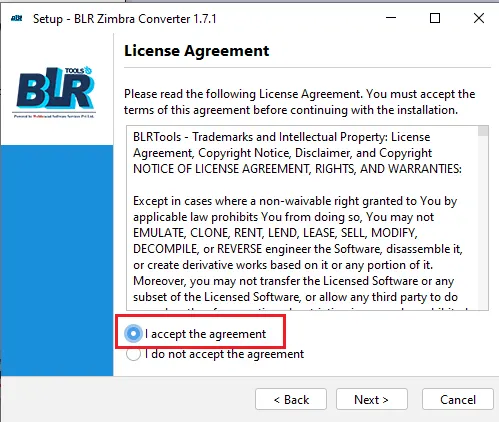
Then, choose “I accept the agreement” and click on the Next button.
-
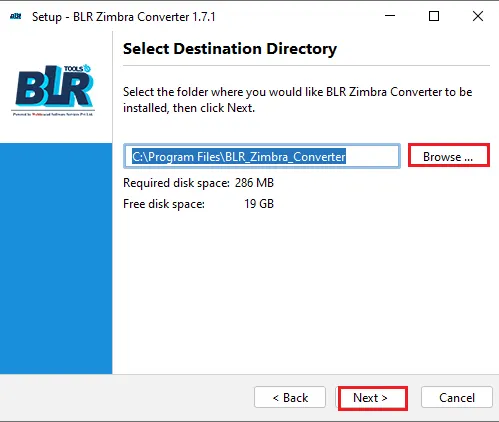
Next, browse the location where you want to install the software.
-
After you click on the Next button, the extraction of data will start.
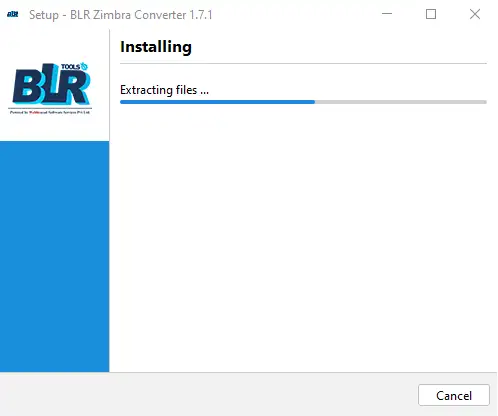
-
In the new Window, choose the options to run the tool and create the shortcut on the desktop.
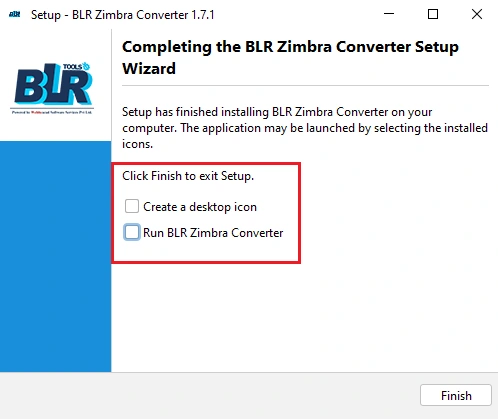
-
At the end, click on the Finish button to complete the software installation process. The tool will automatically open on your screen.
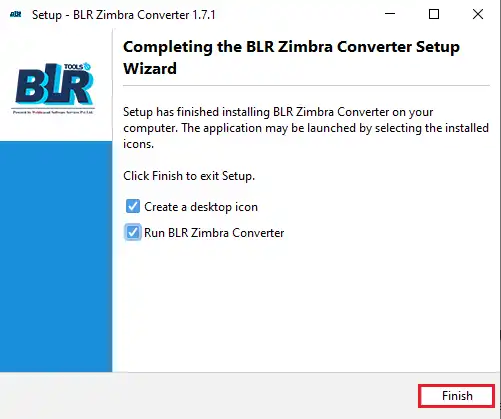
If you are still having any difficulties while installing the BLR Zimbra Converter, then feel free to contact our support team. We are here for your assistance, 24X7.
Software Uninstallation
Here are the steps to uninstall the software from your system, after completing the task.
- Click on the Start button, then Control Panel.
- Go to Programs, then under Features, click on Uninstall a Program.
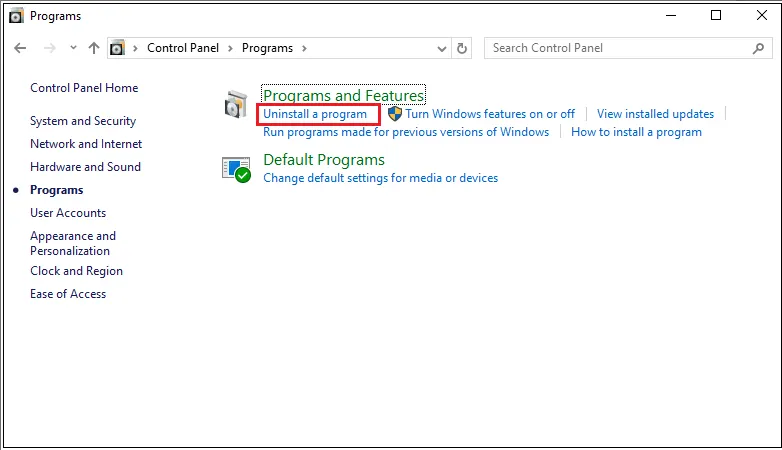
- Find the BLR Zimbra Converter and right-click on it.
- Click on Yes to uninstall the software.
- The system will ask for your permission to uninstall the software. Accept it and complete the task.
System Specifications
To install and run the tool on your system, you need to meet some minimum software requirements.
- Processor: Intel 4.2 GHz or i3 6th Gen 2.4 GHz or higher recommended
- Memory: 4 GB recommended (2 GB minimum)
- Hard Disk: 500 MB for installation files
- Operating System: Windows 11, 10, 8.1, 8 and earlier versions
- Language Supported: English
How to Use Zimbra Converter Software?
Here are the simple instructions to run the BLR Zimbra Converter for conversion.
-
Open the Zimbra TGZ Converter tool on your Windows.
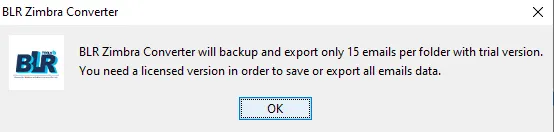
-
The software interface will be open, and you can start the actual process.
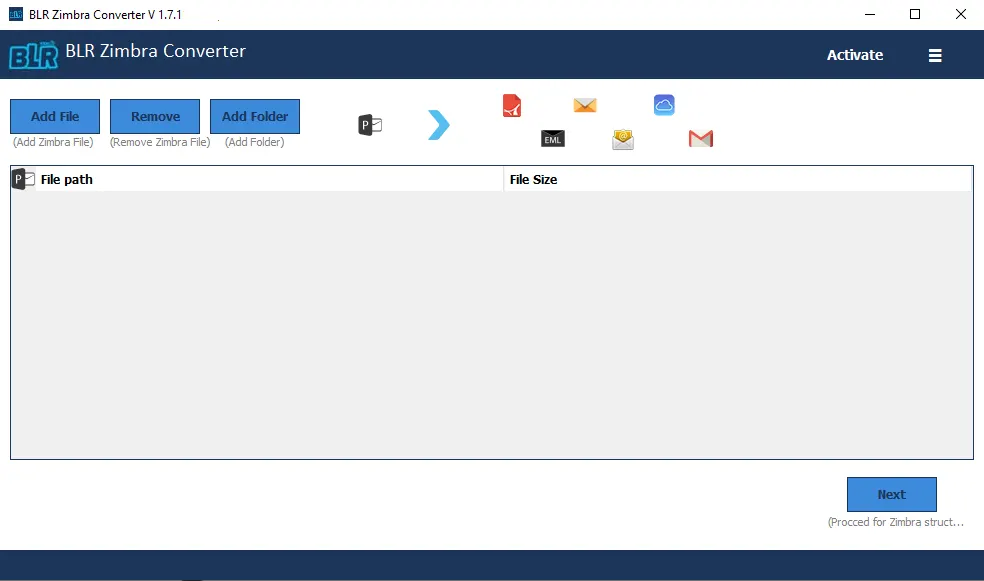
-
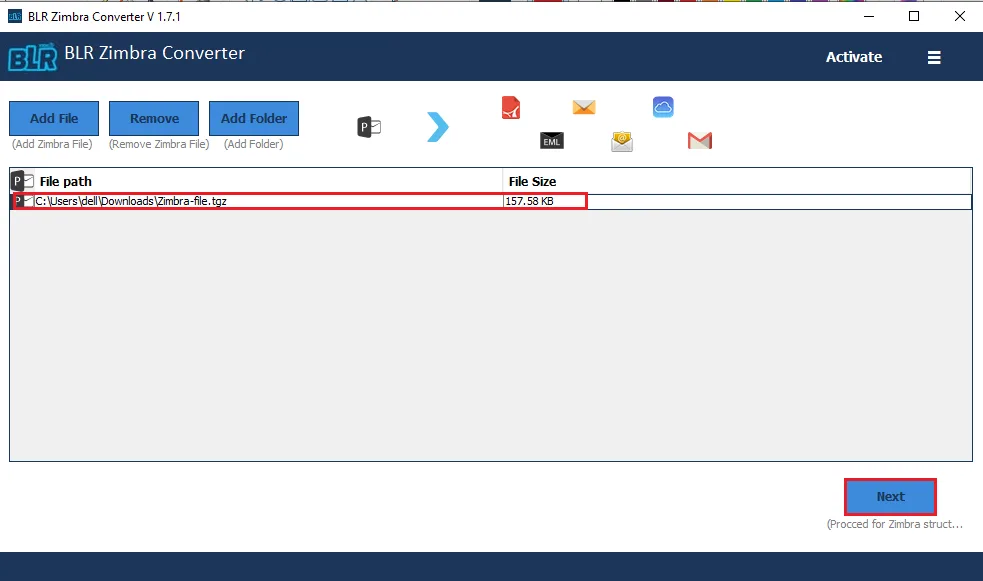
Click on the “Add File” to upload the Zimbra TGZ file.
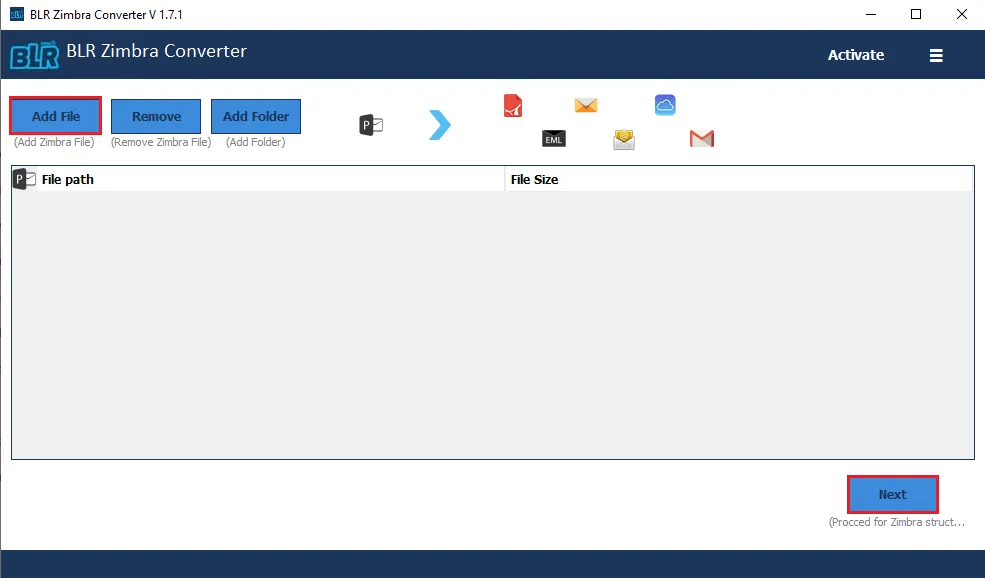
-
Browse the .tgz file on your system.
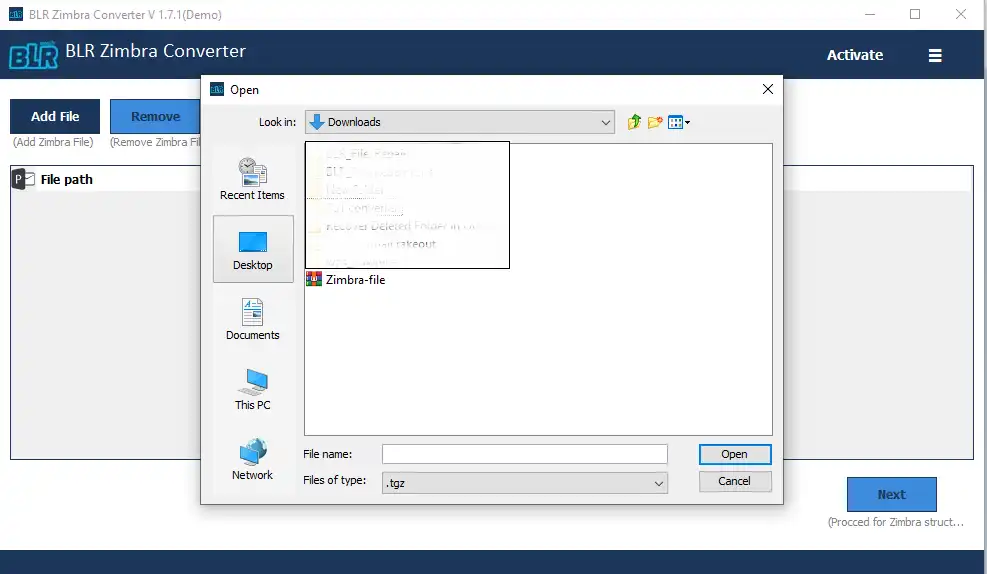
-
After adding the file, click on the Next button to start the process.
-
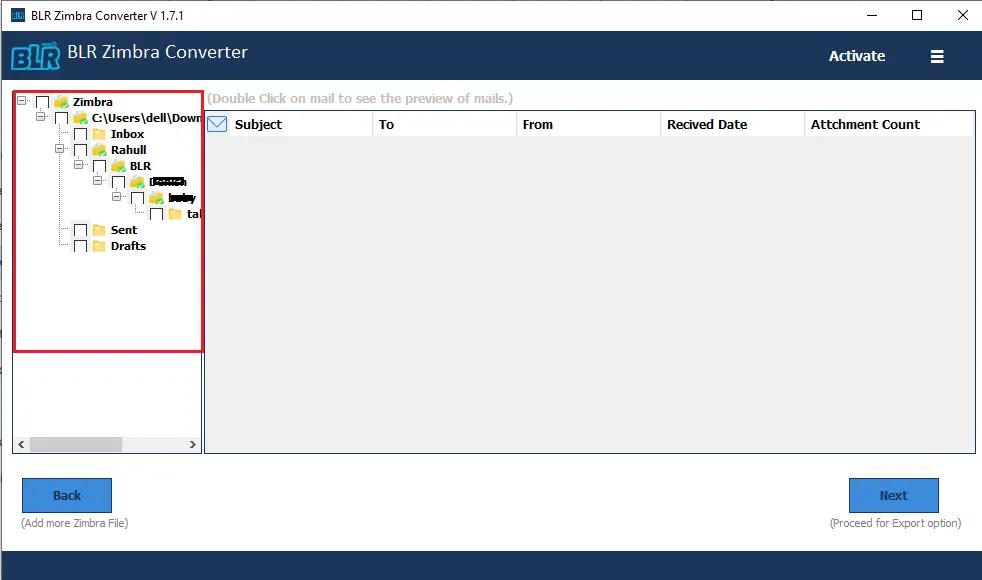
Here you will find the data from the Zimbra TGZ file in a proper structure.
-
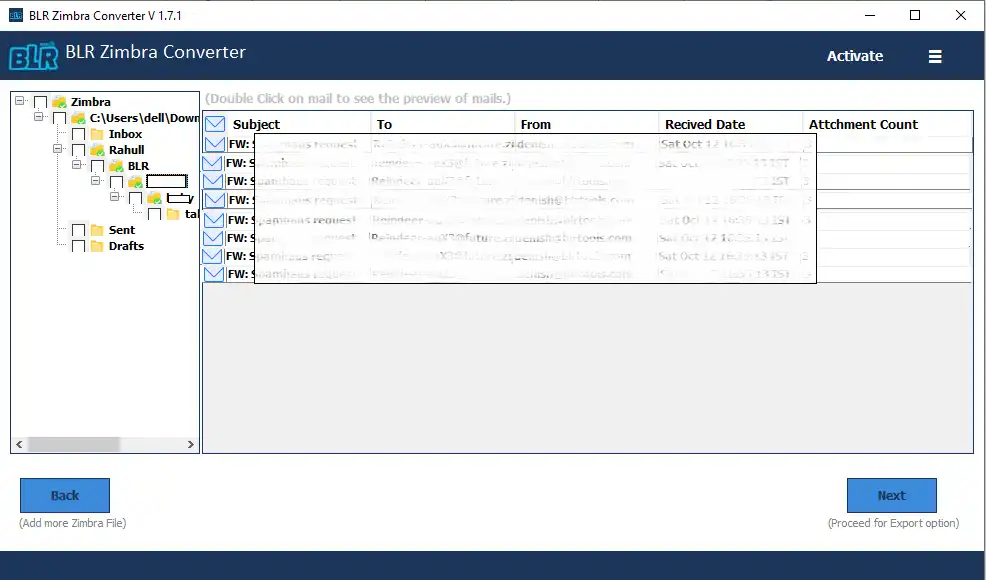
Double-click on any of the folders, and you can find all the emails present in the folder.
-
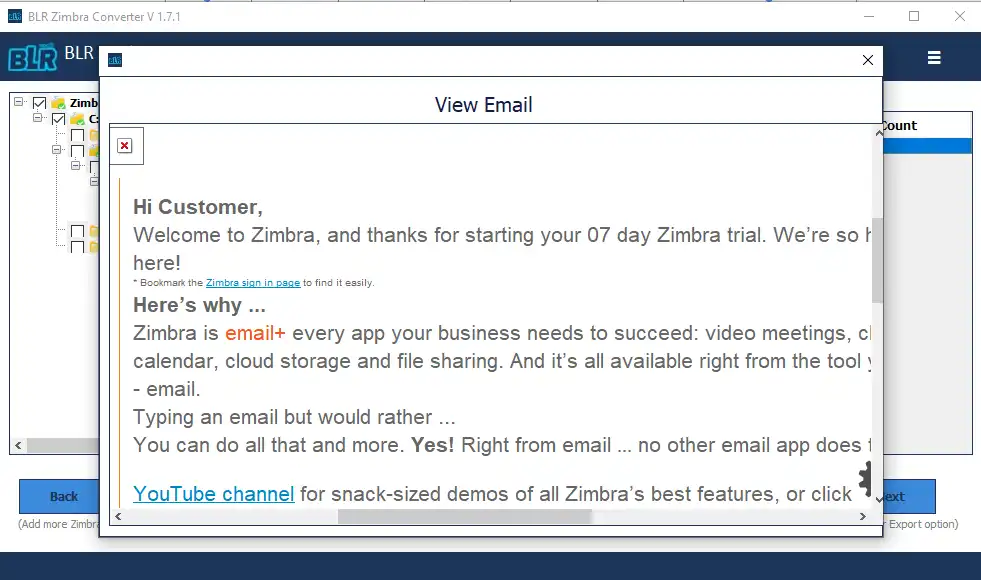
Now, to view your email, double-click on the email.
-
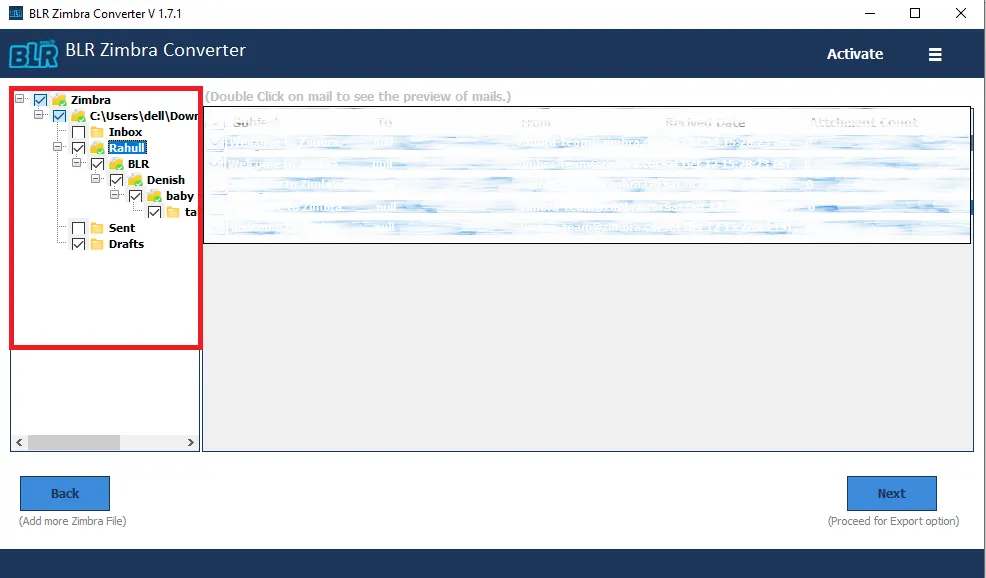
Now choose the email folders you want to convert.
-
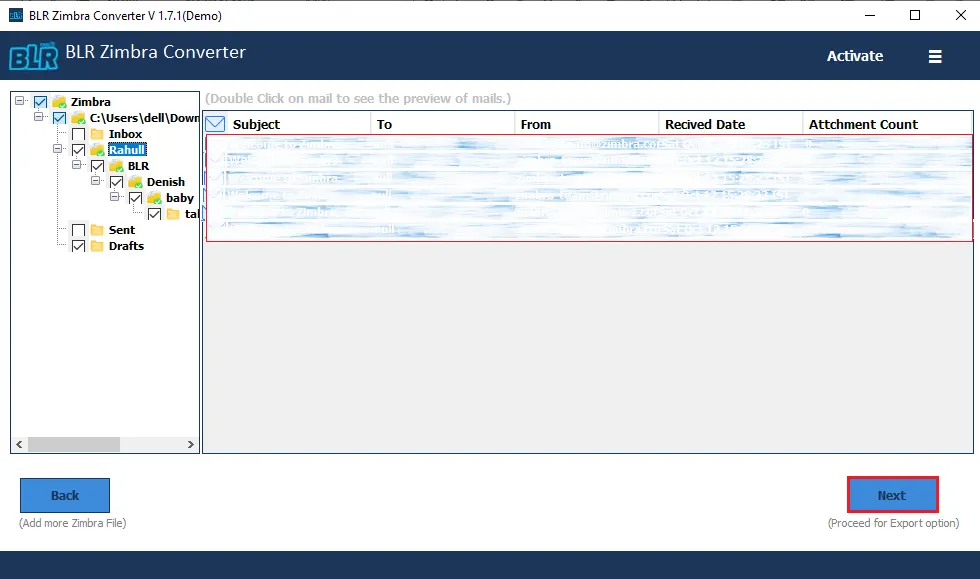
After that, click on the Next button to proceed with the conversion process.
-
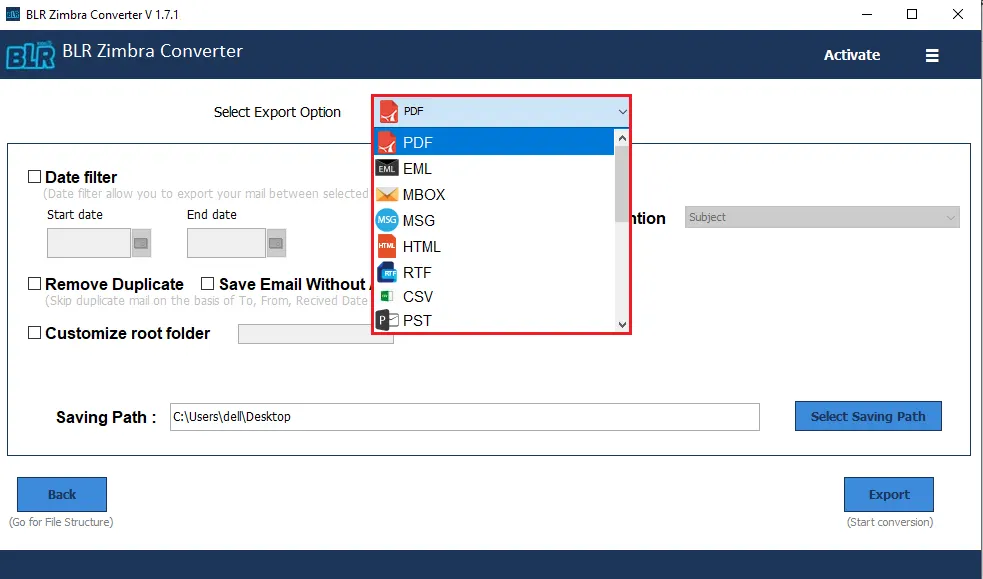
Now, there are multiple export options.
-
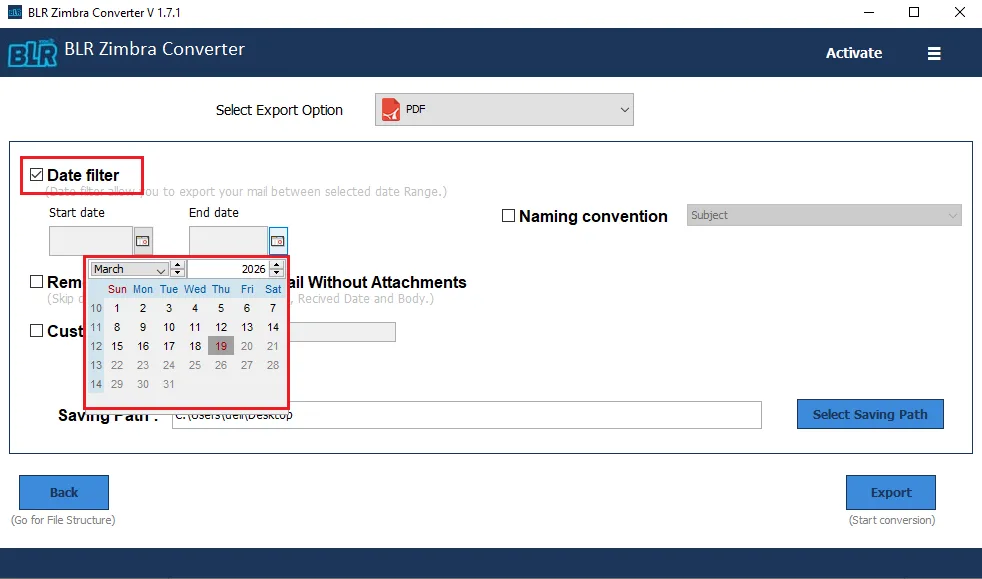
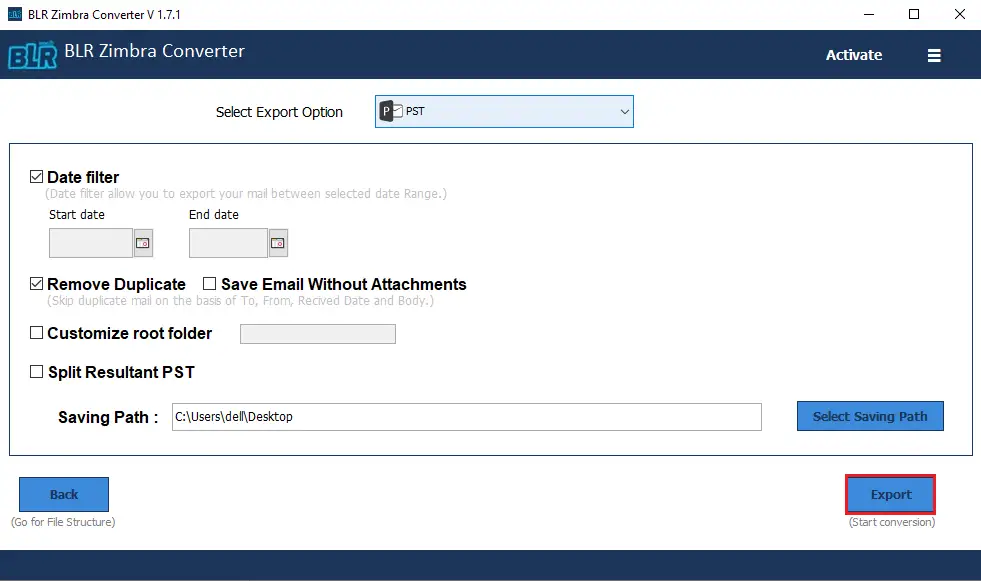
You can also apply the date range filter to convert emails from a specific date.
-
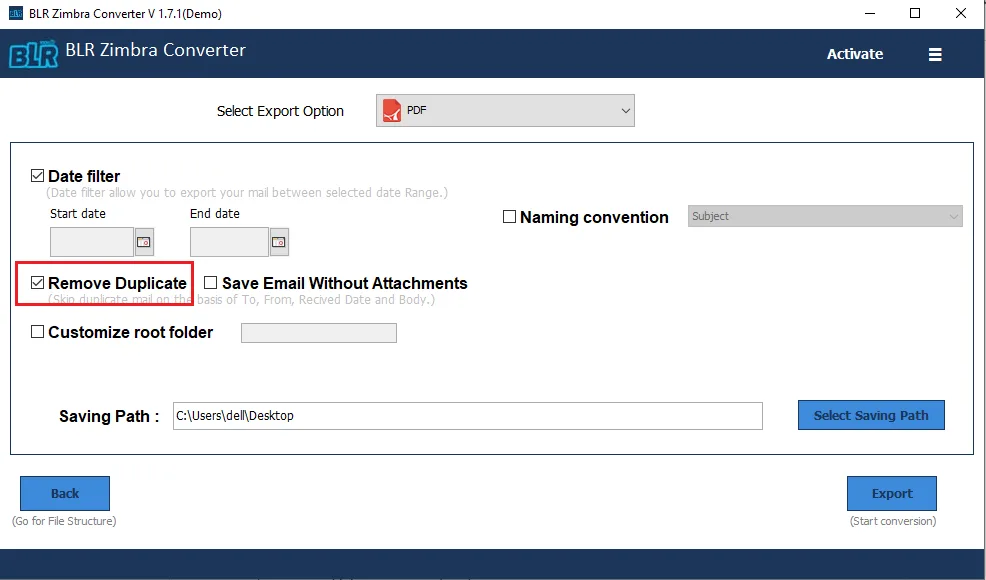
If you want to remove duplicate emails, then you can use this software feature.
-
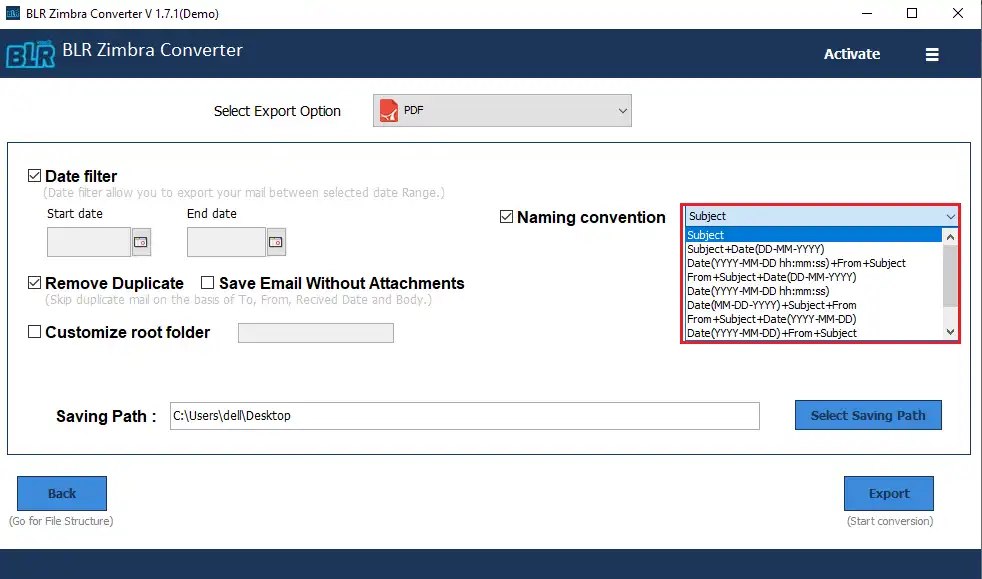
Choose the file naming options from the given list.
-
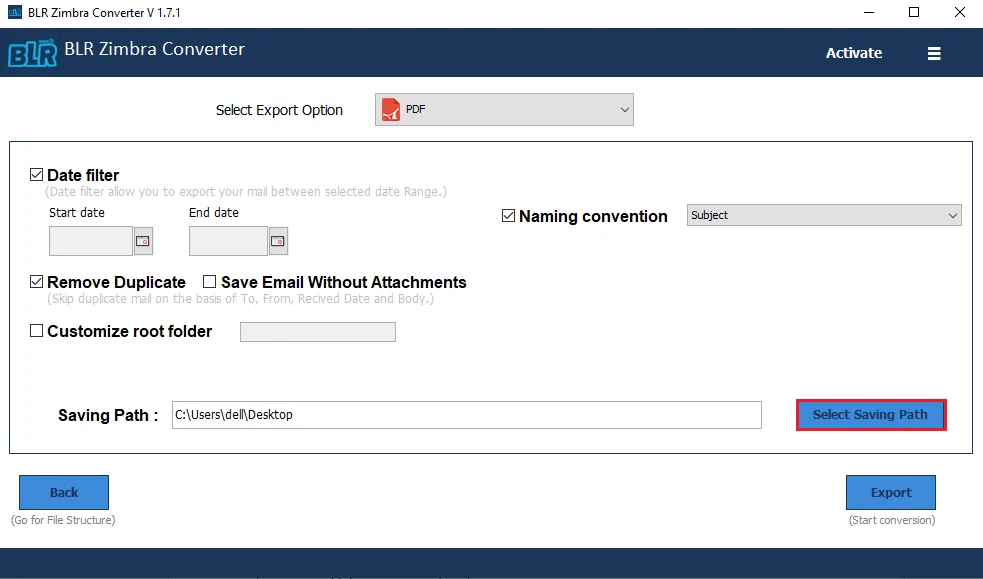
You can also choose the path to save the exported data file.
-
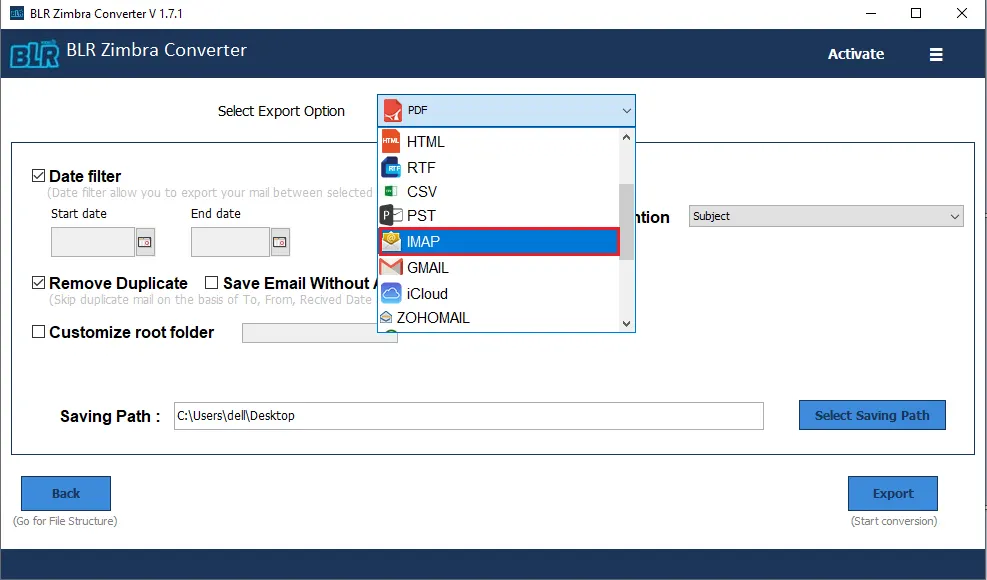
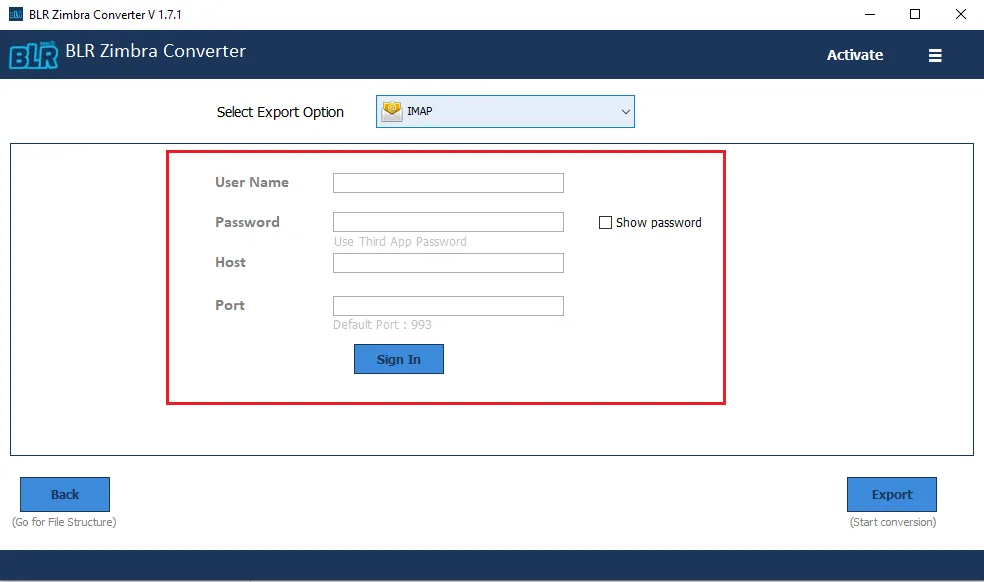
If you choose the IMAP Server or any other webmail account from the export options, then choose it here.
-
Now you need to enter the login details of the corresponding email account. (Note: Use App password to login in).
-
At last, click on Export to start the conversion process.
-
If you choose the PST file as an export option, then you can split the PST file into smaller parts as well.
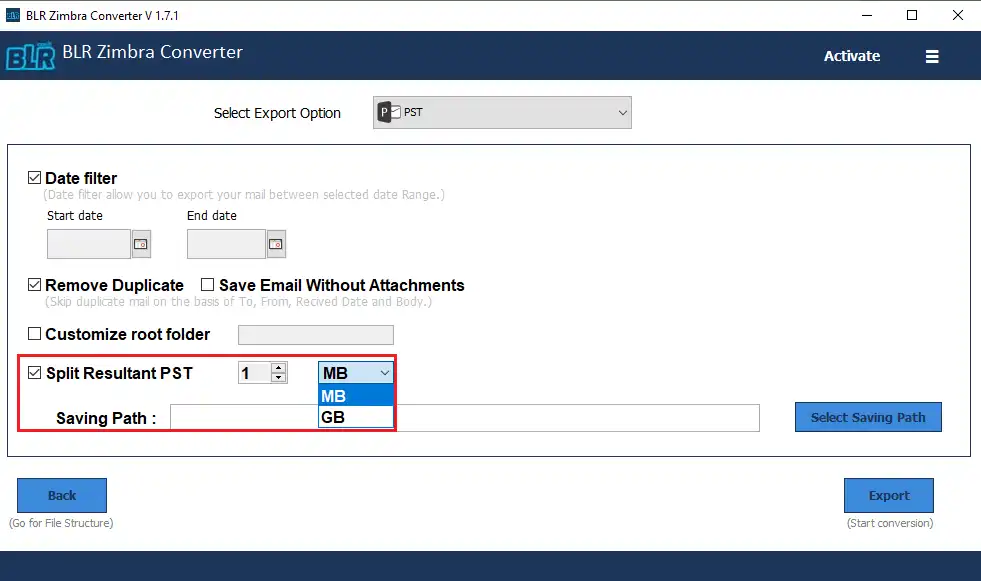
Here, complete the email conversion and migration process.
Zimbra TGZ Converter Tool Working Video
Details regarding hardware and software compatibility go here.
FREQUENTLY ASKED QUESTION
Need Help? Find Answers Here
The tool allows users to convert Zimbra files (TGZ) into multiple formats, such as PST, EML, MSG, MBOX, PDF, and more, depending on their requirements.
Yes, the tool supports batch conversion, enabling users to convert multiple TGZ files simultaneously without data loss.
Absolutely. The tool preserves the original folder hierarchy, email properties, and metadata like To, From, Subject, Date, and attachments.
Yes, users can preview emails, attachments, and other mailbox items before performing the final conversion.
Yes, you can convert TGZ files to PST format, which can be easily imported into Microsoft Outlook.
Yes, the software provides advanced filters such as date range, sender, receiver, and subject to convert only specific emails.
No, the tool is designed to handle large Zimbra mailbox files without performance issues.
Yes, all attachments are retained in their original format and remain linked with their respective emails.
Yes, the tool has a simple and user-friendly interface, making it easy for both technical and non-technical users to use.
Yes, a free demo version is available that allows users to evaluate the features and functionality before purchasing the full version.