BLR OLM Converter is a powerful and reliable software designed to convert OLM files (Mac Outlook data files) into multiple file formats with complete accuracy. It helps users easily migrate emails, contacts, calendars, and other mailbox data from Mac Outlook to Windows Outlook and other email platforms without any data loss.
Whether you are switching from Mac to Windows or need a backup of your OLM data, this tool offers a smooth and hassle-free conversion experience.
Key Features:
- BLR OLM Converter allows users to convert OLM files to PST, EML, MSG, MBOX, PDF, and HTML. This flexibility makes it easy to access data across different email clients and platforms.
- The tool efficiently converts all mailbox components, such as emails, attachments, contacts, calendars, notes, and tasks, without missing any data.
- During the conversion process, the software preserves the original folder hierarchy, email formatting, and metadata properties like To, From, Subject, Date, and attachments.
- Users can convert multiple OLM files in a single process, which saves time and increases productivity—especially useful for businesses and IT professionals.
- Before starting the conversion, users can preview all mailbox items. This helps ensure that only the required data is selected for conversion.
- The software is designed with a simple and intuitive interface, making it easy for both technical and non-technical users to operate without any difficulty.
- BLR OLM Converter supports the conversion of large-sized OLM files without any restrictions, ensuring smooth performance even with heavy data.
- The software has an option to import OLM file to Office 365, Gmail, Yahoo Mail, GoDaddy Workmail, Live Exchange, and all IMAP Servers.
- Users can choose specific folders or items for conversion instead of converting the entire mailbox, giving better control over the process.
- The tool is equipped with an advanced algorithm that ensures fast and accurate conversion while maintaining system performance.
- The converted PST files are fully compatible with all versions of Microsoft Outlook, including Outlook 2021, 2019, 2016, 2013, and earlier versions.
- The software ensures complete data security throughout the conversion process, with no risk of data loss or corruption.
- BLR OLM Converter works seamlessly with OLM files created by all versions of Outlook for Mac.
Software Installation
-
Firstly, download the software on your Windows from the given link https://www.blrtools.com/olm-converter/
Or you can download using this link https://www.blrtools.com/dl/blr-olm-converter.exe
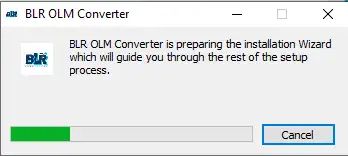
After that, follow the instructions given below:
-
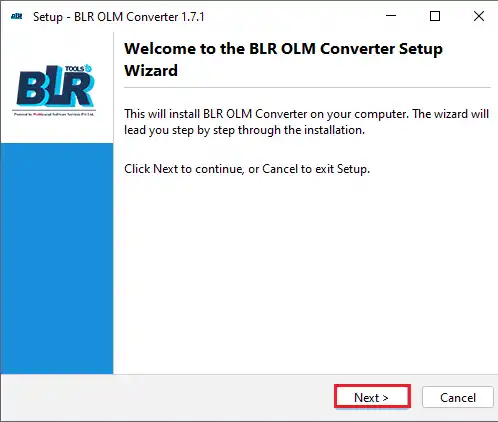
A welcome window will appear; click on Next to start the installation process.
-
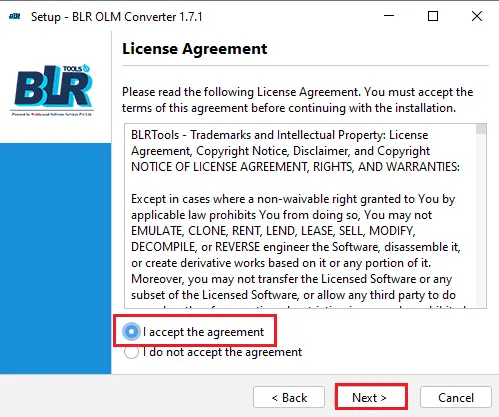
Then, choose “I accept the agreement” and click on the Next button.
-
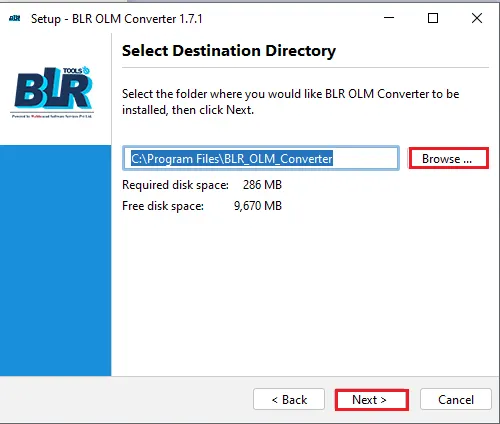
Next, choose the location where you want to install the software.
-
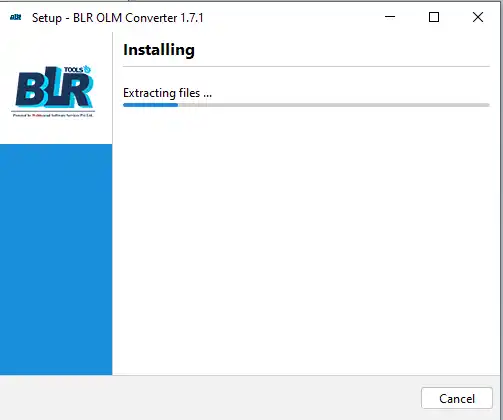
After you click on the Next button, the software starts extracting the data.
-
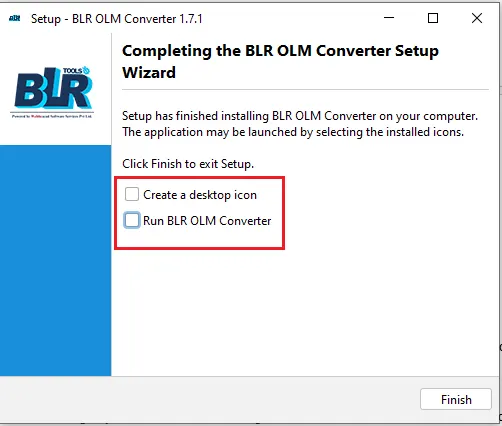
In the new Window, you can choose any of the two options or both.
-
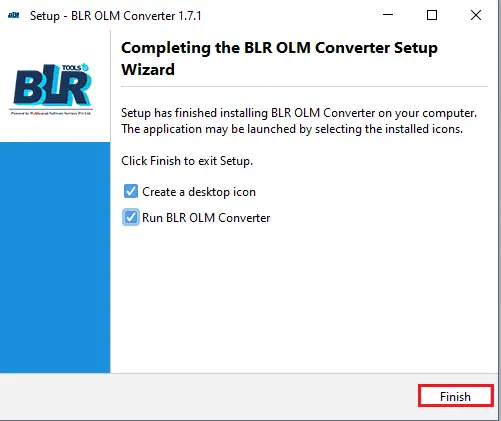
At the end, click on the Finish button to complete the software installation process. A shortcut will appear on your desktop. Click it and start using the software.
If you are still having any difficulties while installing the BLR OLM Converter, then feel free to contact our support team. We are here for your assistance, 24X7.
Software Uninstallation
Here are the steps to uninstall the software from your system, after completing the task.
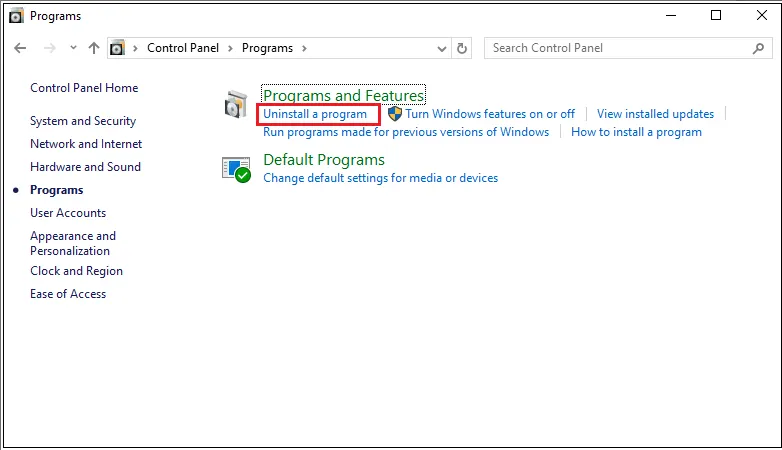
- Click on the Start button, then Control Panel.
- Go to Programs, then under Features, click on Uninstall a Program.
- Find the BLR OLM Converter and right-click on it.
- Click on Yes to uninstall the software.
- The system will ask for your permission to uninstall the software. Accept it and complete the task.
System Specifications
To install and run the tool on your system, you need to meet some minimum software requirements.
- Processor: Intel 4.2 GHz or i3 6th Gen 2.4 GHz or higher recommended
- Memory: 4 GB recommended (2 GB minimum)
- Hard Disk: 500 MB for installation files
- Operating System: Windows 11, 10, 8.1, 8 and earlier versions
- Language Supported: English
Step-by-Step Guide to Use OLM Converter Software
Here are the simple instructions to use the BLR OLM Converter for conversion.
-
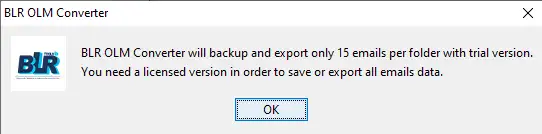
Open the OLM Converter tool on your Windows.
-
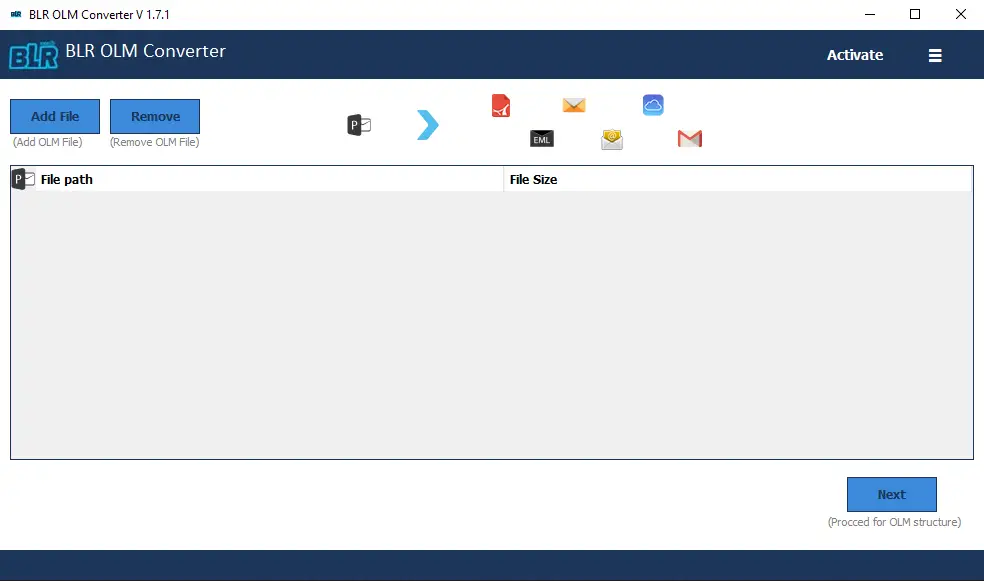
The software interface will be open, and you can start the actual process.
-
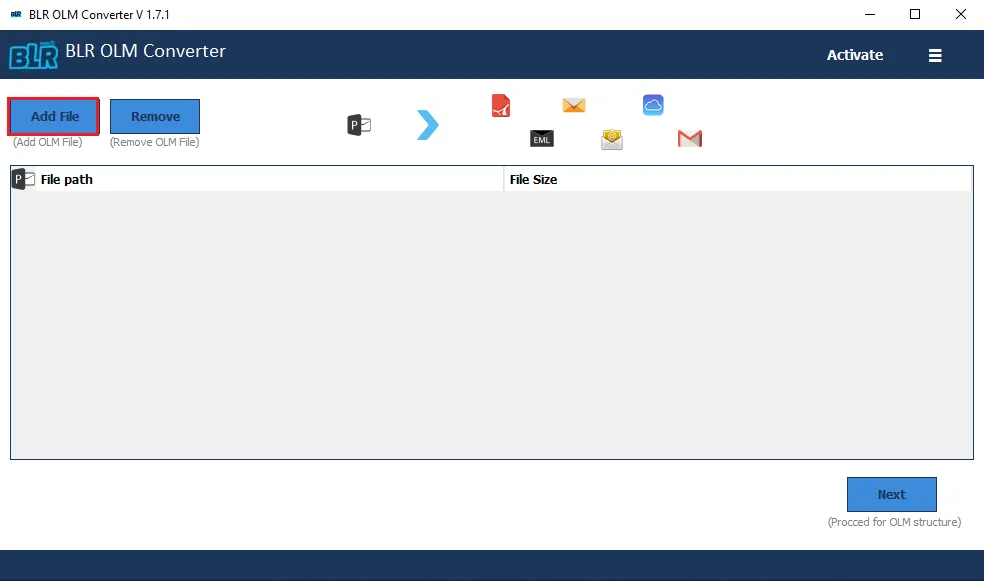
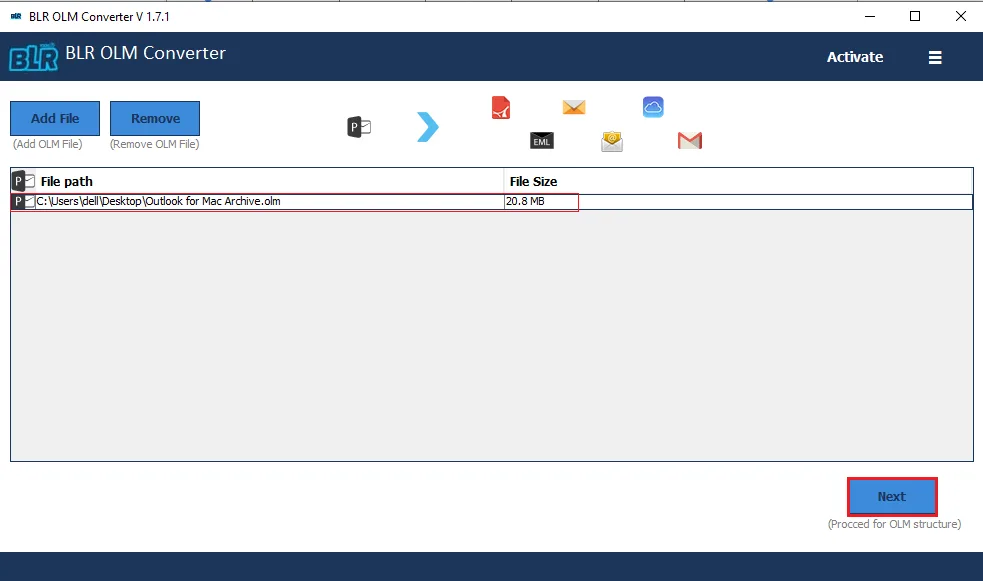
Click on the “Add File” to upload the OLM file.
-
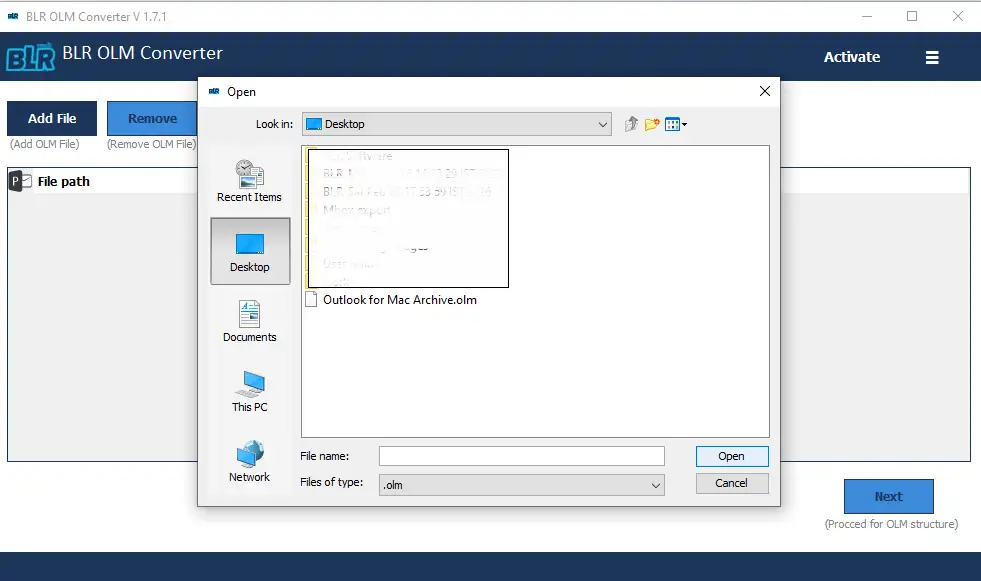
Browse the OLM file on your system.
-
After adding the OLM file, click on the Next button to start the process.
-
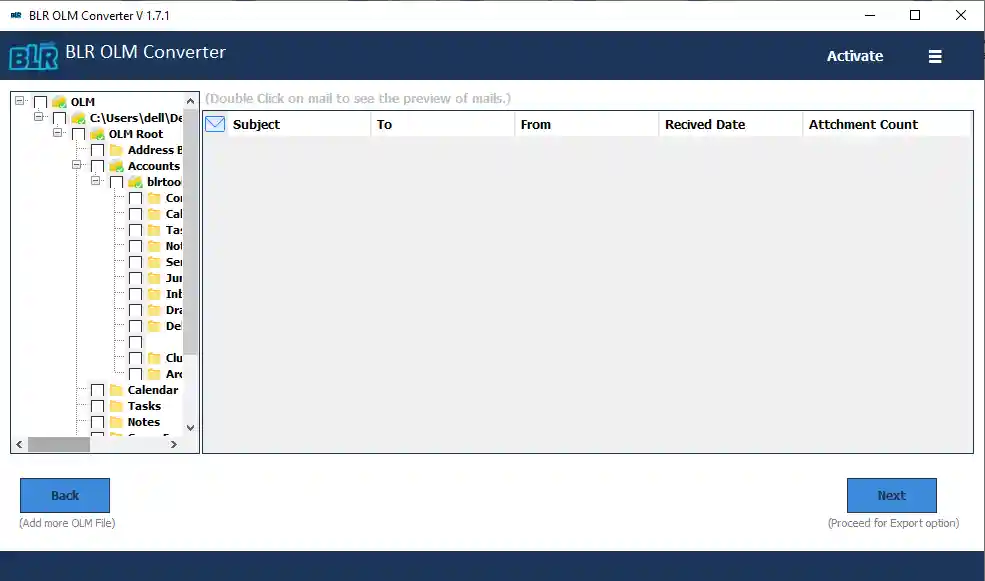
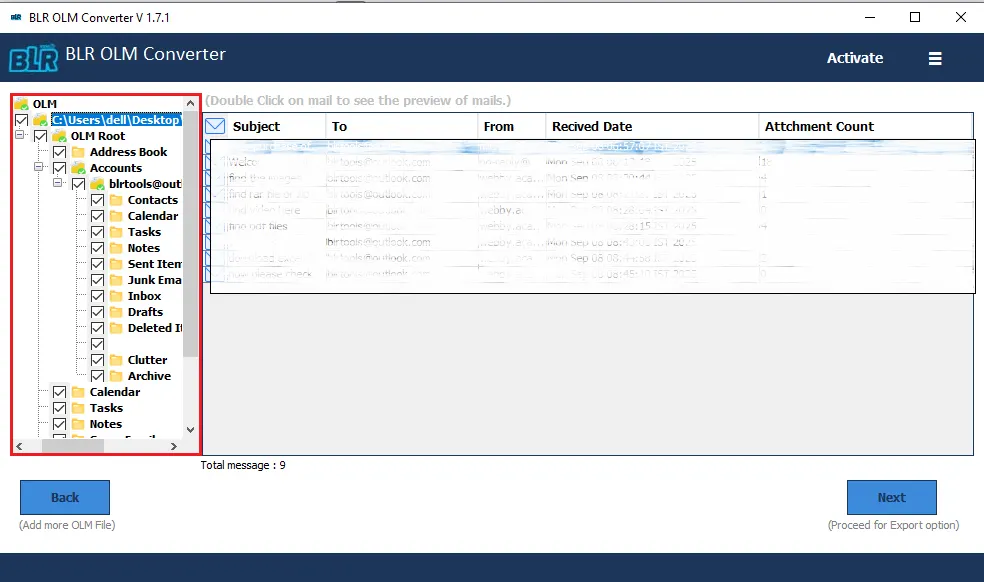
Here you will find the data from the OLM file in a proper structure.
-
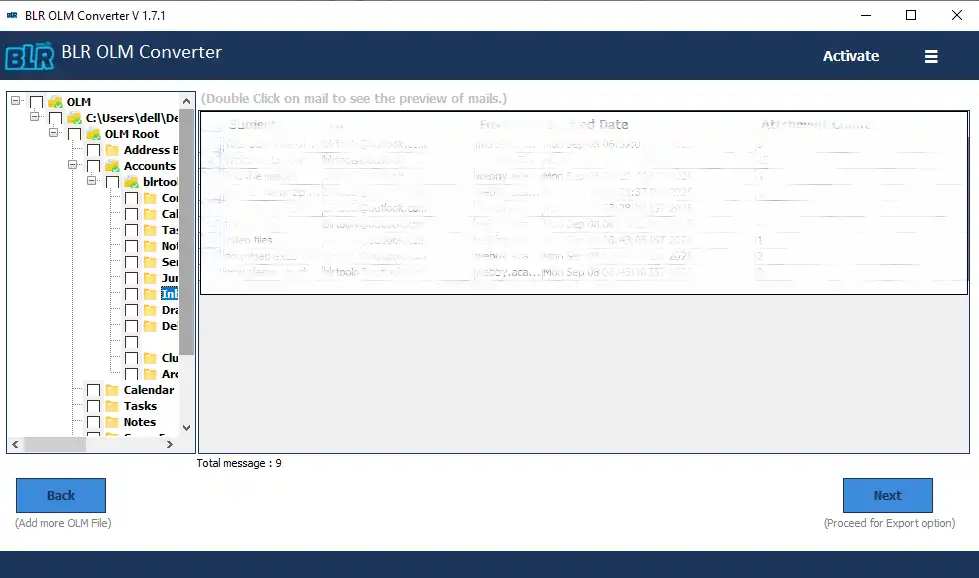
Double-click any folder to see all the emails in it.
-
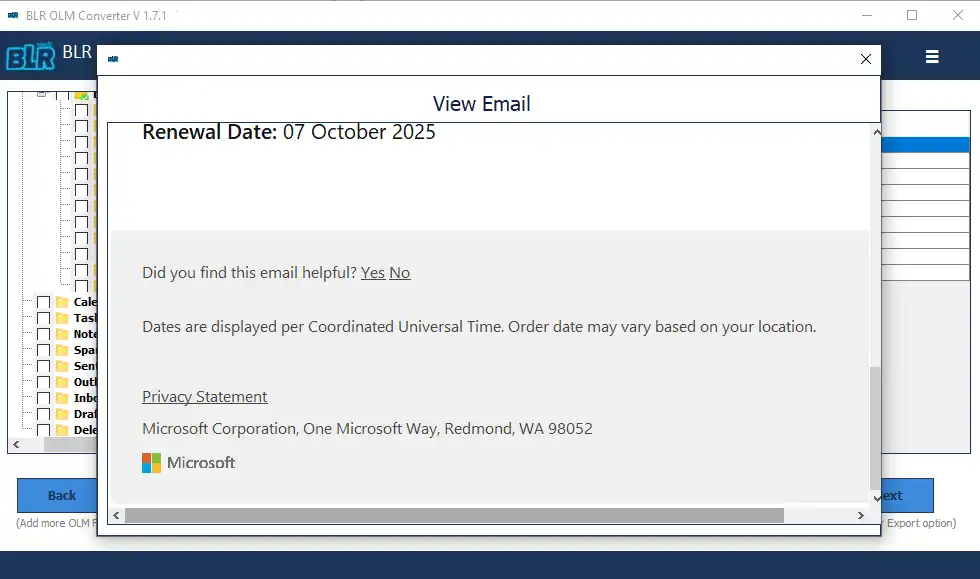
Now, to view your email, double-click on the email.
-
Now choose the email folders you want to convert.
-
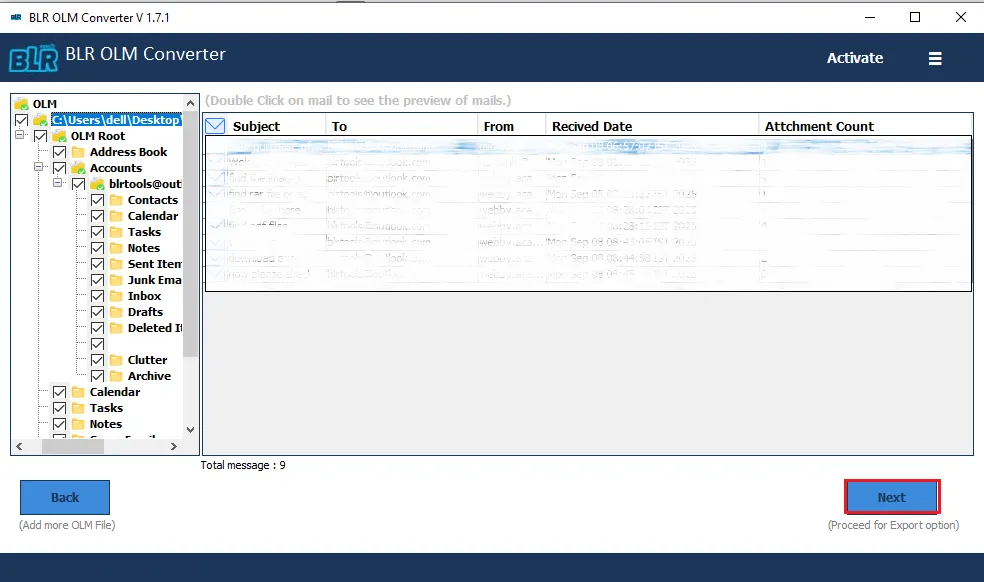
After that, click the Next button to proceed with the conversion.
-
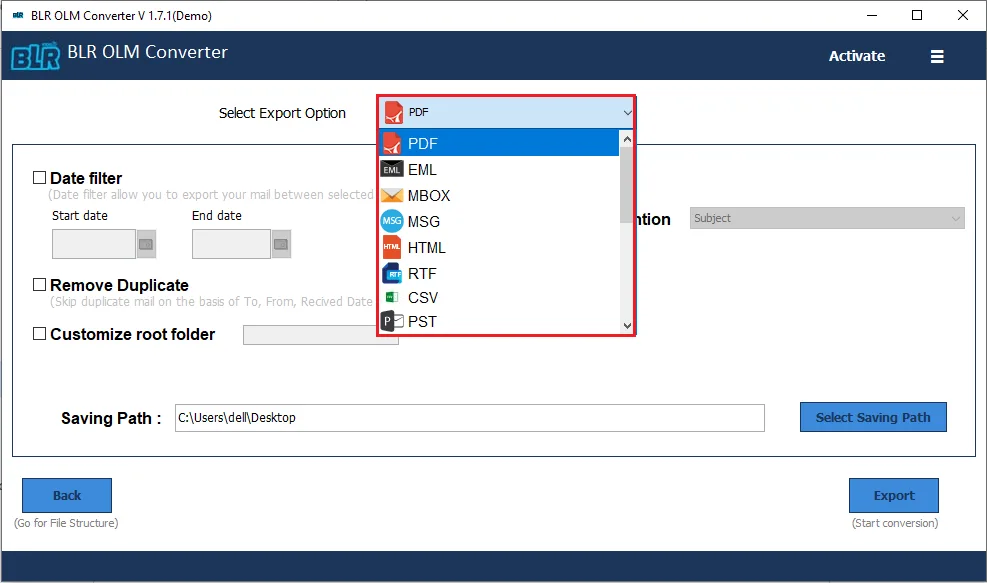
There are now multiple export options.
-
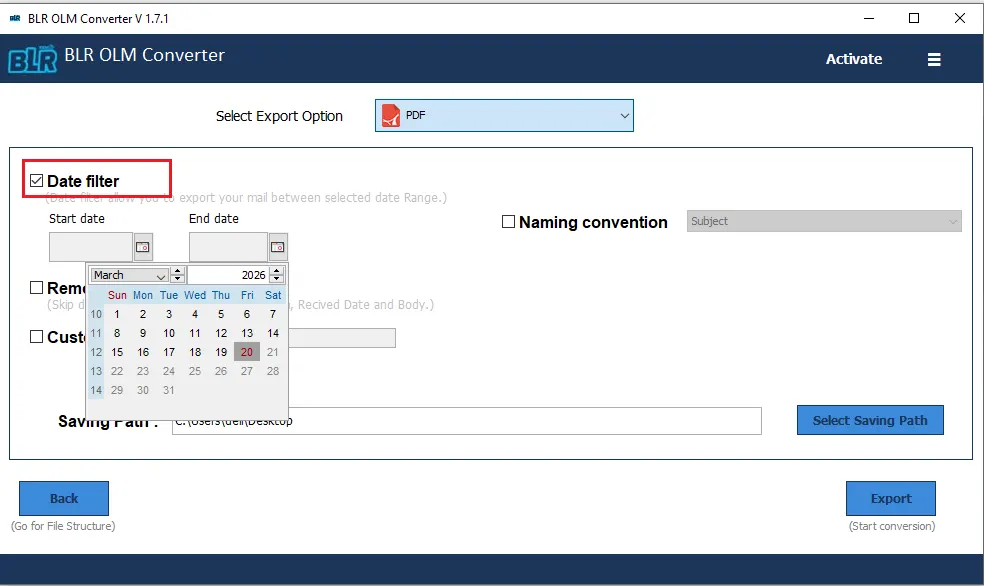
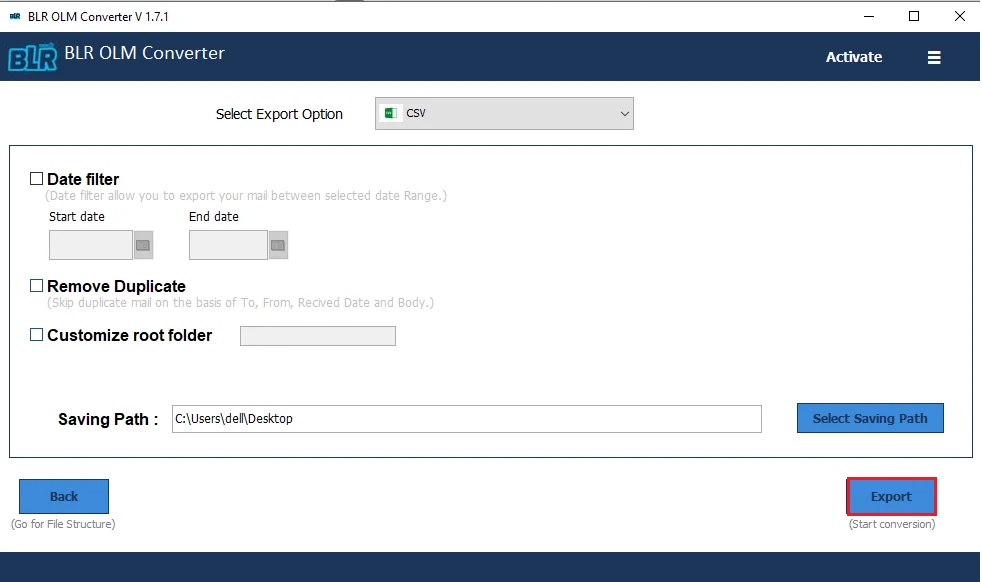
You can also apply the date range filter to convert emails from a specific date.
-
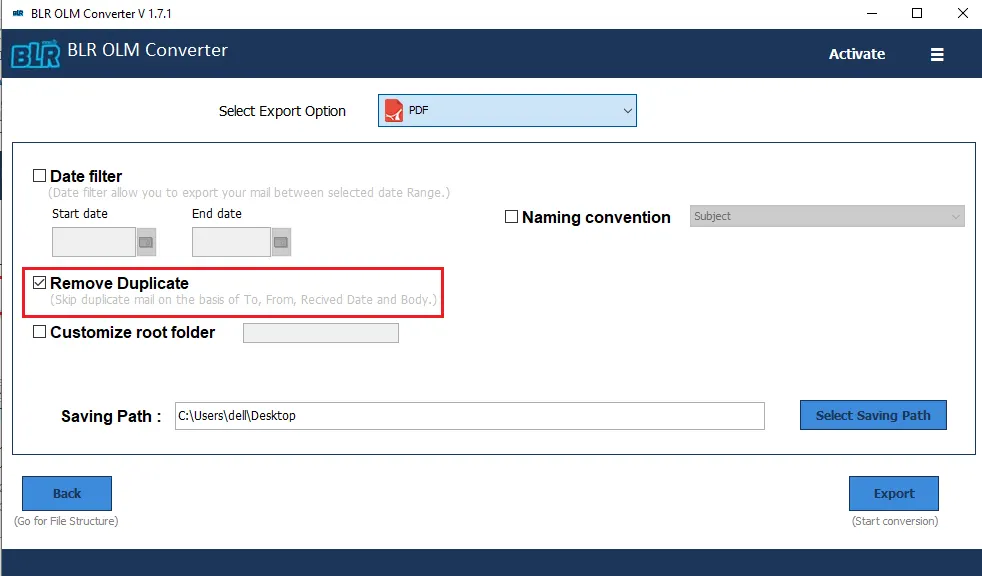
If you want to remove duplicate emails, then you can use this software feature.
-
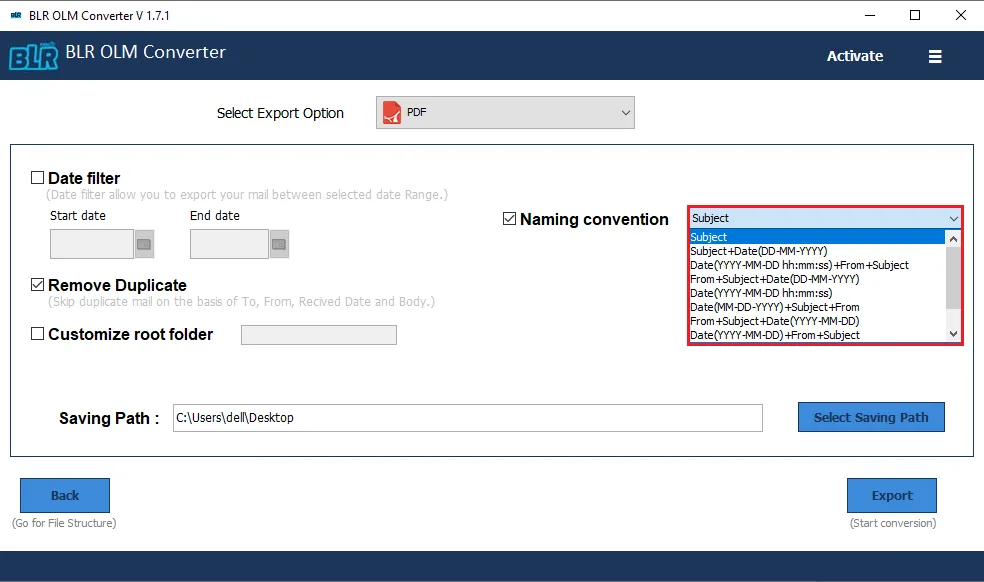
Choose the file naming options from the given list.
-
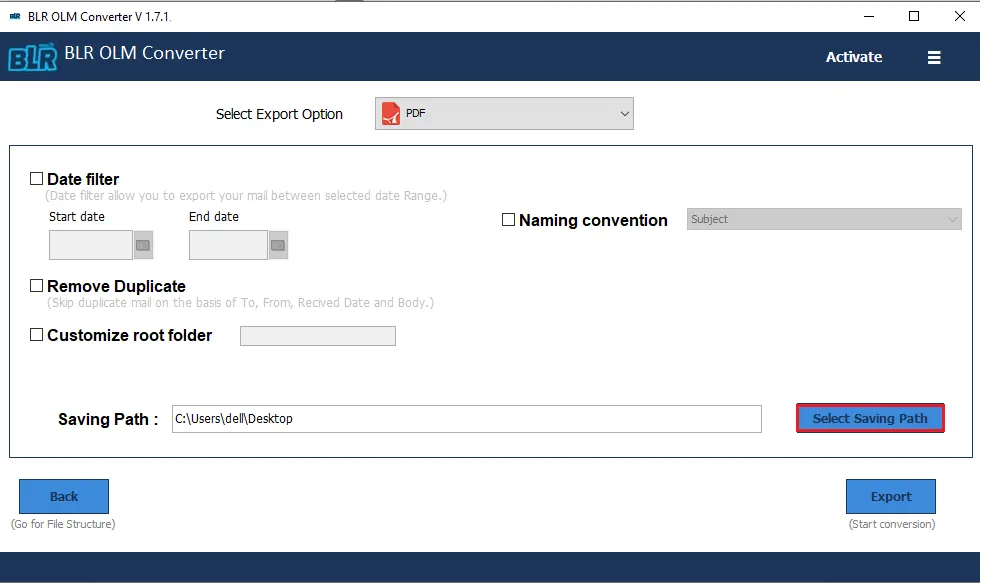
You can also choose the path to save the exported data file.
-
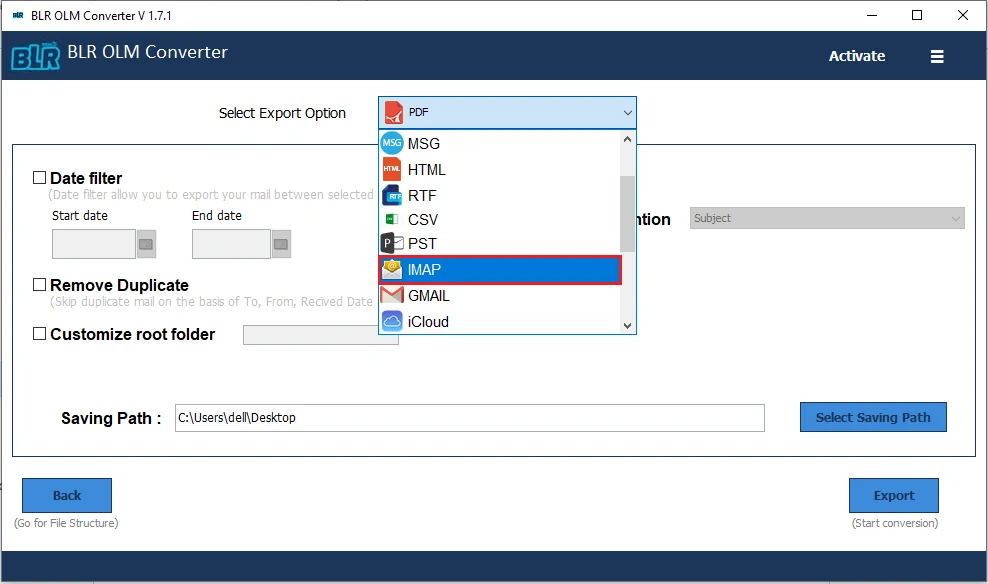
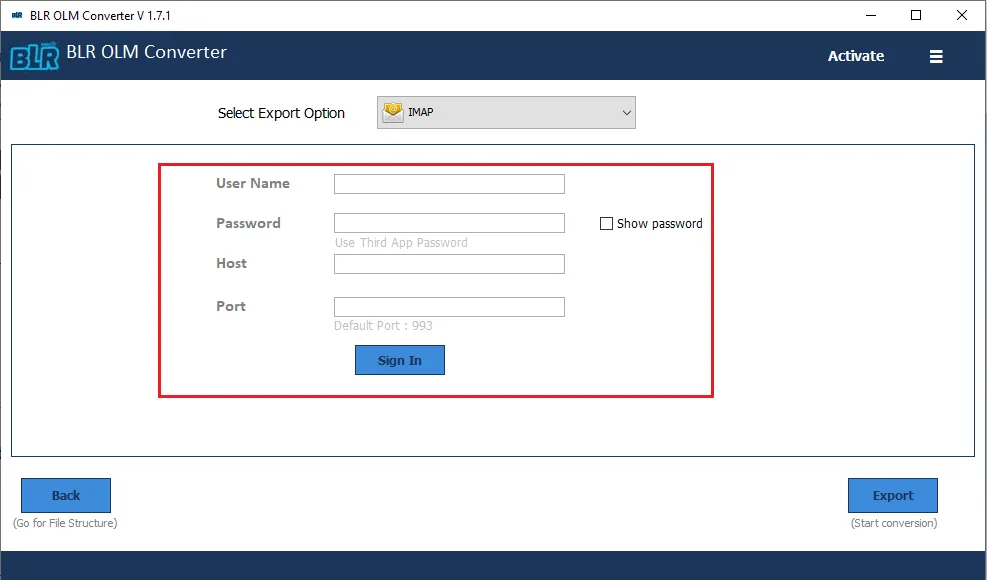
If you choose the IMAP Server or any other webmail account from the export options, then choose it here.
-
Now you need to enter the login details of the corresponding email account. (Note: Use App password to login in).
-
At last, click on Export to start the conversion process.
-
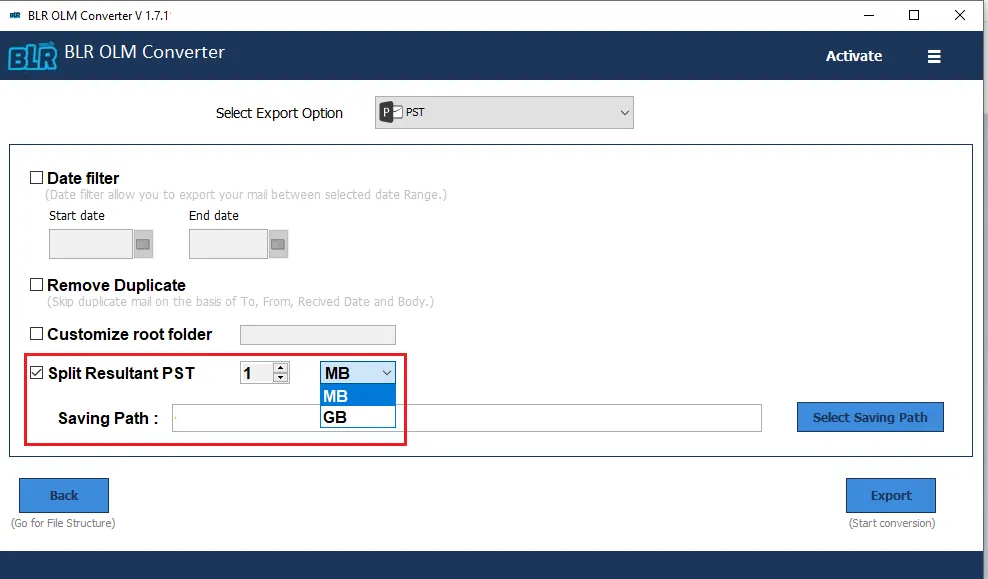
If you choose the PST file as an export option, then you can split PST file into smaller parts as well.
Here, complete the email conversion and migration process.
FREQUENTLY ASKED QUESTION
Need Help? Find Answers Here
A good OLM Converter program like BLR OLM Converter can help you change OLM to PST without losing any data. The software keeps emails, attachments, contacts, calendars, and folder hierarchy intact during the conversion process to make sure that all of your data is safe. It moves the data safely and accurately without changing the original data.
There is a professional standalone solution that lets you convert OLM files without having to install Outlook. The BLR OLM Converter is meant to work on its own, so users may convert OLM to PST and other files without having to install Microsoft Outlook.
This tool makes it easy to convert emails, contacts, calendars, notes, journals, folder structure, and metadata to a PST file.
There is no direct way to convert OLM emails and other data for free. Manual methods are hard to understand, take a long time, and could cause data loss. The safest and most effective approach to do an accurate conversion without any technical problems is to use a professional program like BLR OLM Converter.
Yes, BLR OLM Converter can convert a lot of OLM files at once, so you can do it all at once. This function is quite helpful for enterprises and IT managers who have to deal with a lot of email data.
Outlook for Windows does not support OLM files directly. Before you can open an OLM file, you need to change it to PST format. After you use the BLR OLM Converter to change the file, you can effortlessly import it into Outlook for Windows and get to your data.
Yes, the BLR OLM Converter keeps the original folder structure and all the email properties, like the sender, receiver, subject, timestamps, and attachments. This makes sure that the data looks the same after it has been converted.
It is best to use a strong and optimized tool like BLR OLM Converter to convert huge OLM files without making mistakes. It is made to handle big files quickly and without corrupting them, slowing down the system, or losing data.
Yes, the BLR OLM Converter has a preview tool that lets users see emails, attachments, contacts, and other objects in their mailbox before they start the conversion. This helps make sure that you are changing the right data.
You should use a professional converter tool that can handle damaged files if your OLM file is broken. BLR OLM Converter can scan and get data from damaged OLM files, which makes sure that the most data can be recovered and the conversion goes smoothly.