The BLR Excel Repair Tool is a high-accuracy tool that can fix Excel files that are corrupted, damaged, or hard to reach. This program lets you quickly and safely get your important data back if your Excel file won't open, Excel file open blank, or crashes for no reason.
System crashes, malware attacks, improper shutdowns, or software problems can all cause Excel files to become corrupted. In these situations, manual recovery methods typically don't work. A specialized Excel repair tool employs powerful algorithms to scan for and rectify corruption while keeping the original data structure and style.
Key Features:
- Fix damaged, unreadable, or inaccessible Excel files in just a few clicks—no technical skills required.
- Restore all your important data, including tables, charts, formulas, and formatting, without losing a single detail.
- Keep your Excel file exactly as it was, same layout, same formatting, same accuracy.
- Resolve issues like file not opening, crashes, or unreadable content quickly and smoothly.
- Repair multiple Excel files at once and save valuable time, especially for business users.
- View recovered data before final saving to ensure everything is accurate and complete.
- No matter the file size or damage level, the tool performs powerful and reliable recovery.
- Deep scan algorithms detect and fix corruption Excel files with high precision.
- Compatible with all major Excel formats like XLS, XLSX, and XLSM.
- Designed for everyone, as it repairs Excel files easily without any technical expertise.
Software Installation
-
Firstly, download the software on your Windows from the given link https://www.blrtools.com/excel-repair/
Or you can download using this link https://www.blrtools.com/dl/blr-excel-repair.exe
Double-click on the file to run the installer
-
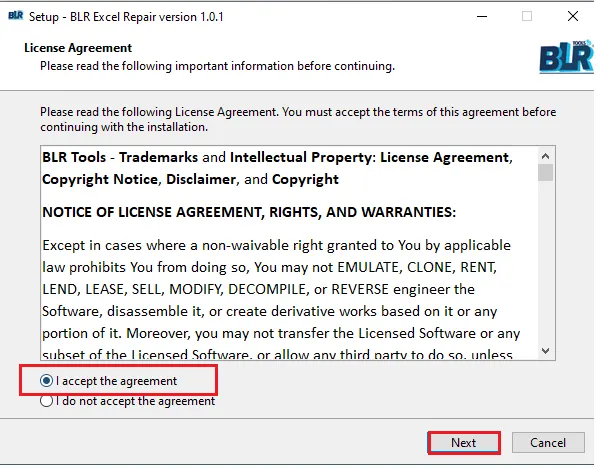
On the next screen, choose "I accept the agreement" and click on the Next button.
-
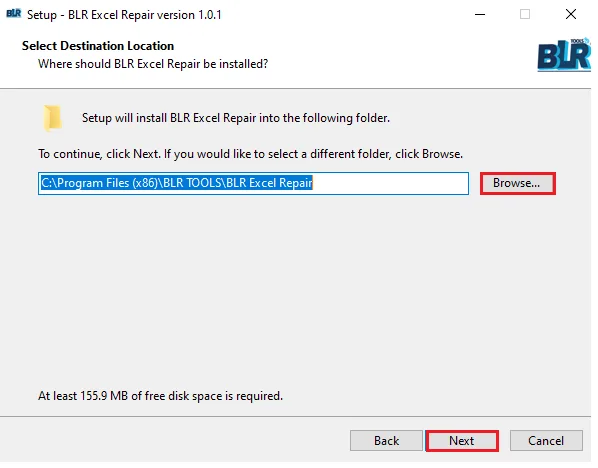
Next, choose the location where you want to install the software.
-
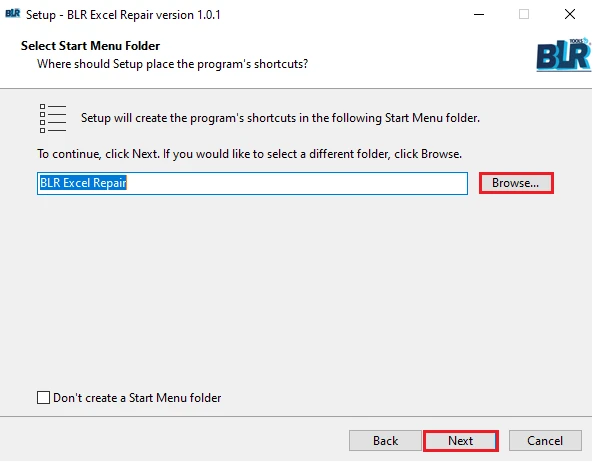
After you click on the Next button, you can choose the start menu folder and click on the Next button.
-
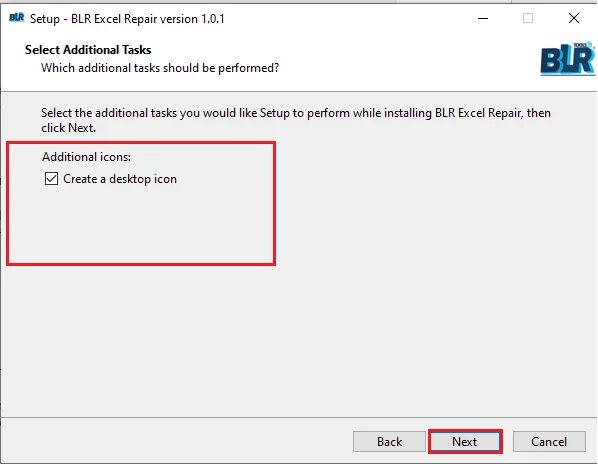
️In the new Window, you can choose the additional options, i.e., create a shortcut.
-
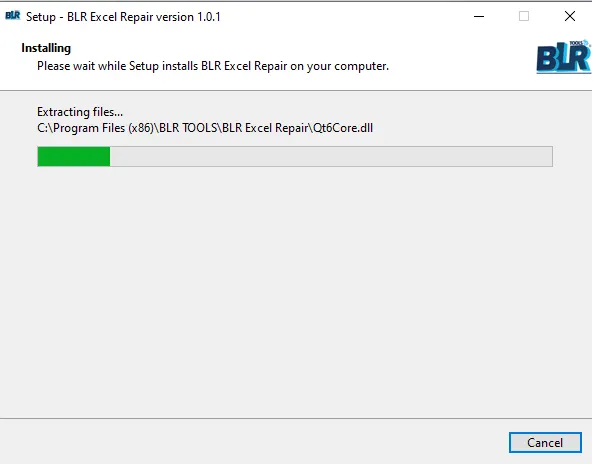
After you click on the Next button, the tool will start extracting files and the tool will automatically open.
Software Uninstallation
Here are the steps to uninstall the software from your system, after completing the task.
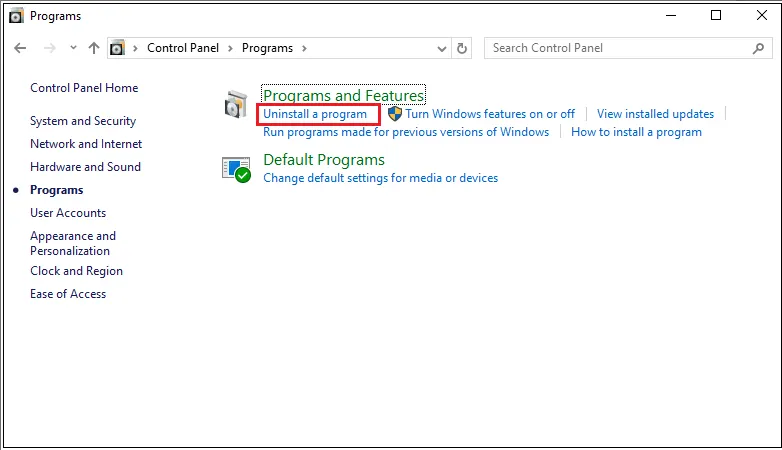
- Click on the Start button, then Control Panel.
- Find the BLR Excel Repair tool and right-click on it.
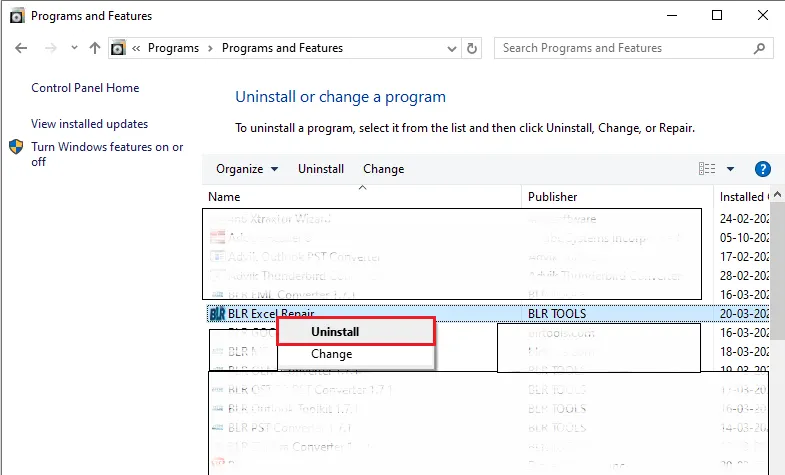
- Click on Yes to uninstall the software.
- The system will ask for your permission to uninstall the software. Accept it and complete the task.
System Specifications
To install and run the tool on your system, you need to meet some minimum software requirements.
- Processor: Intel 4.2 GHz or i3 6th Gen 2.4 GHz or higher recommended
- Memory: 4 GB recommended (2 GB minimum)
- Hard Disk: 500 MB for installation files
- Operating System: Windows 11, 10, 8.1, 8 and earlier versions
- Language Supported: English
Step-by-Step Guide to Use BLR Excel Repair Software
Here are the simple instructions to use the BLR Excel Repair for conversion.
-
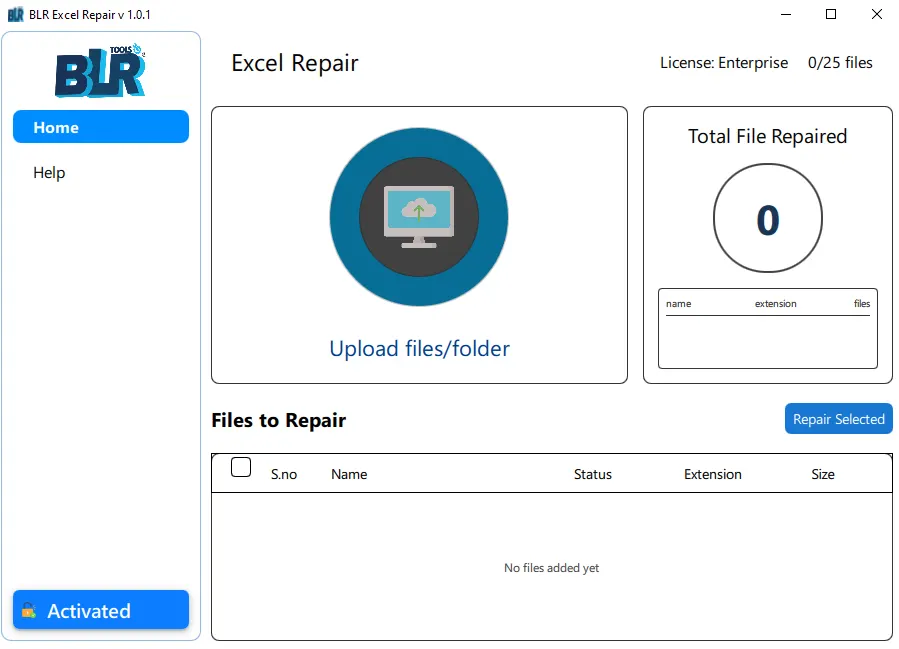
Firstly, open the BLR Excel Repair Tool on your Windows.
-
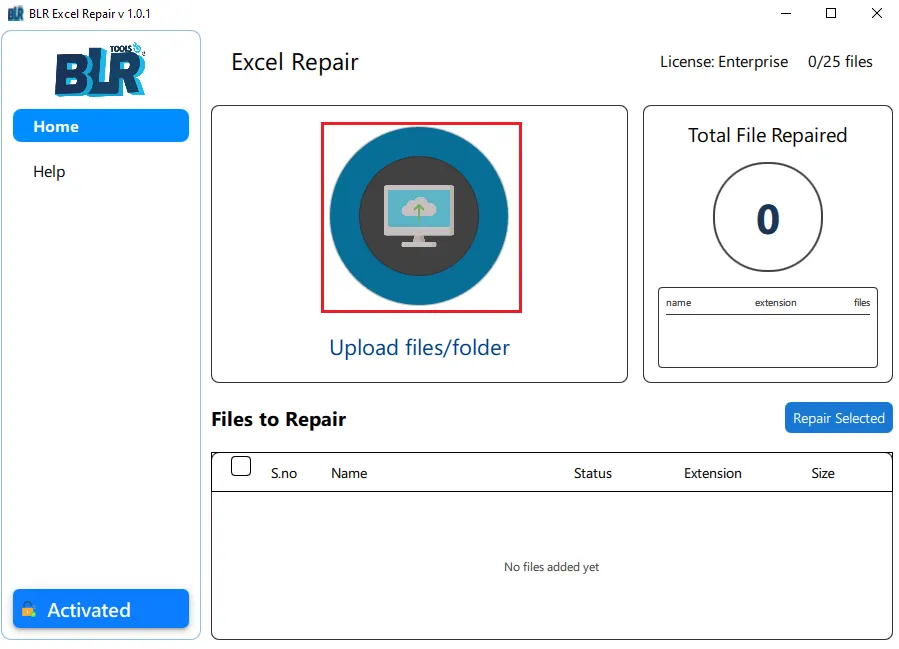
Click on upload files/folder to add the corrupted or damaged Excel file.
-
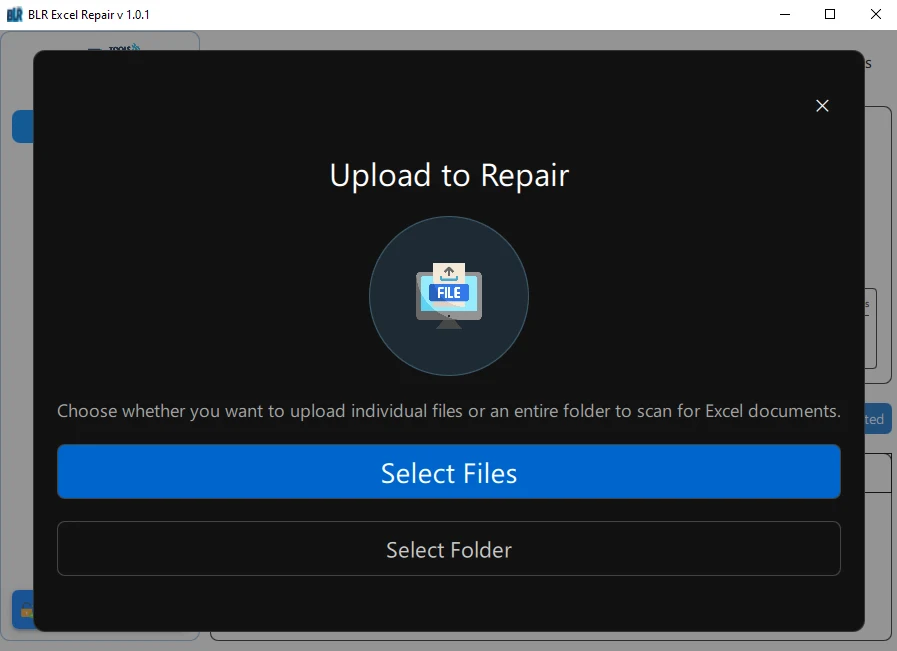
Here you can select the file or choose the folder that you want to recover.
-
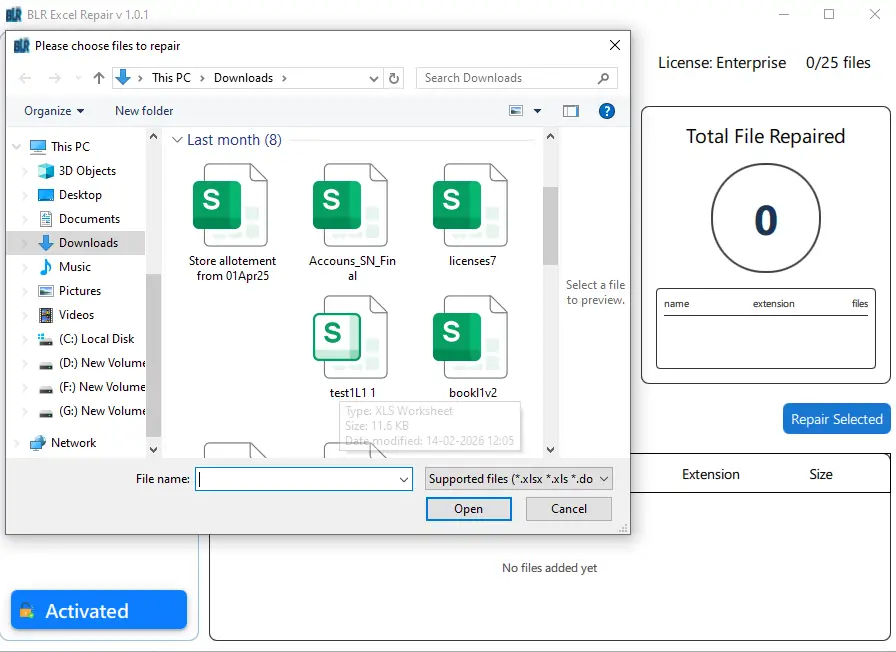
Here, you can choose the Excel file from your system that needs to be repaired.
-
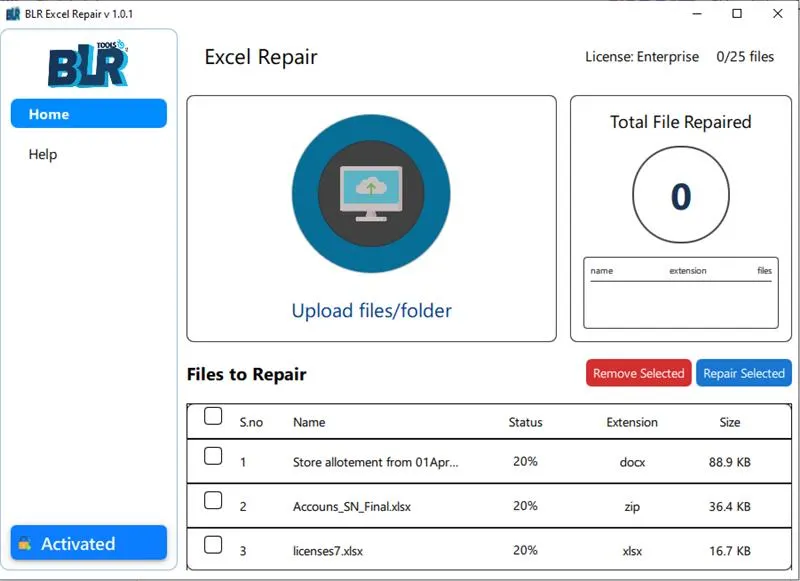
Here you can view all the selected Excel files.
-
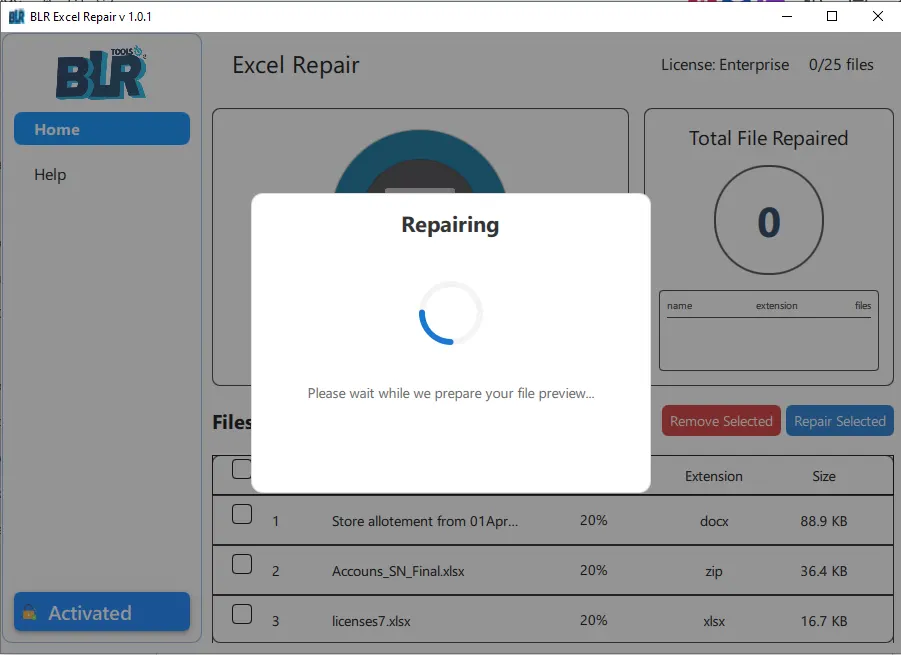
Here you can click the Excel file and preview its content.
-
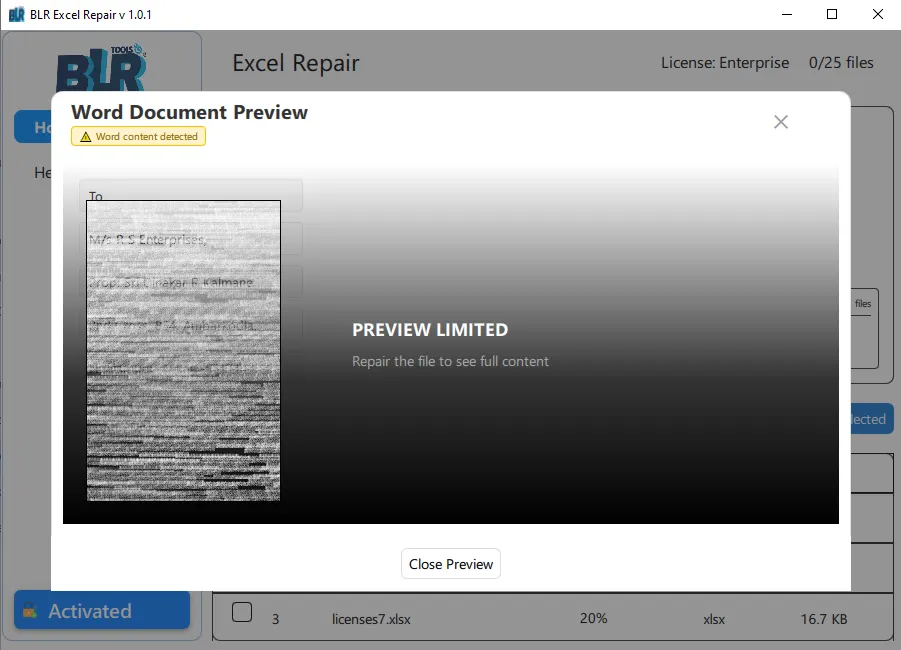
Here is the preview window of your corrupted Excel file. Here you can view the limited data, and to view the complete file, you can do so after repairing it.
-
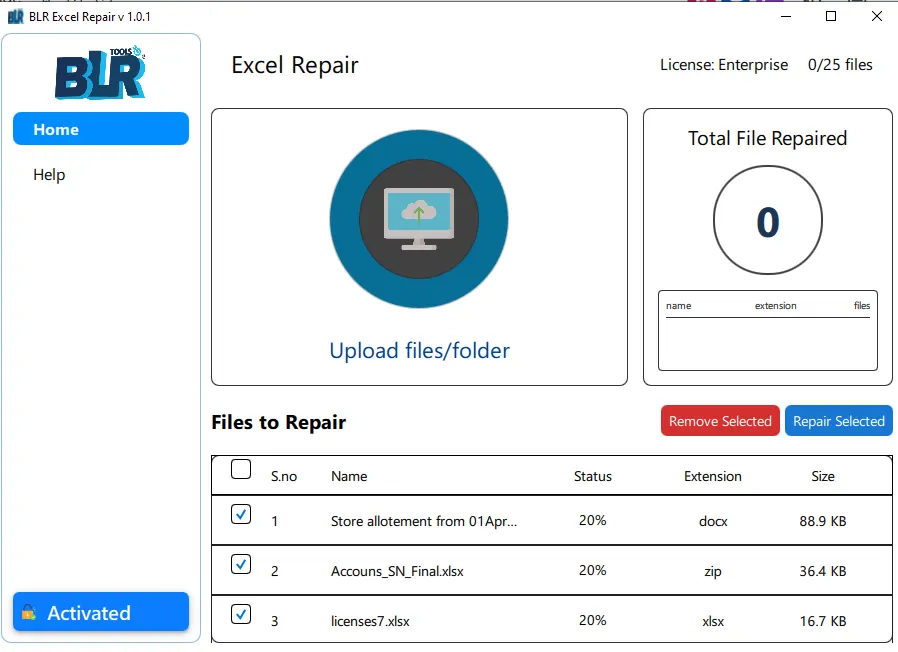
Now choose the file that you want to repair.
-
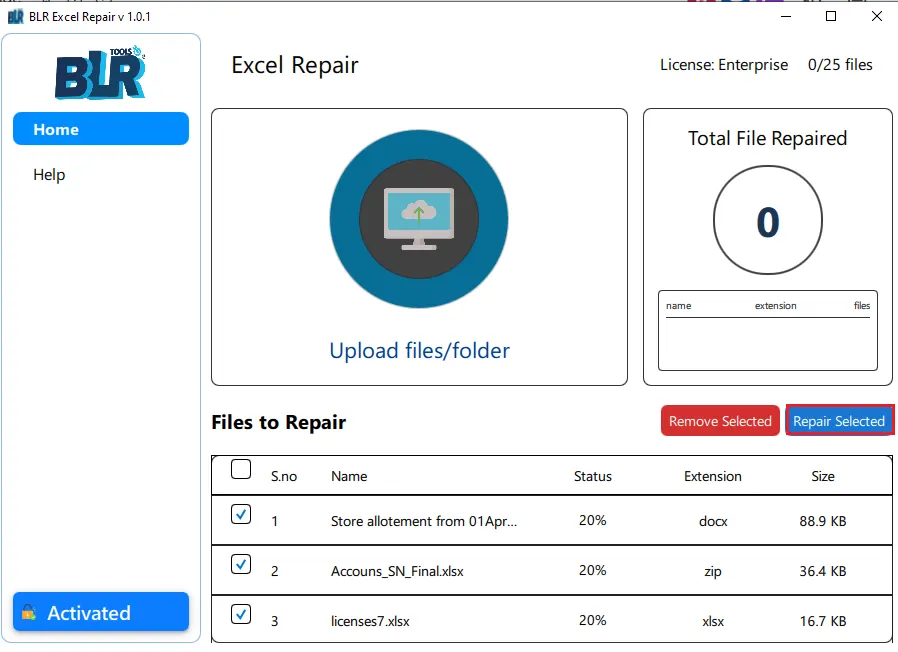
Click on the Repair selected and start the repairing process.
-
After clicking on the Repair button, the tool repairs the corrupted Excel file.
-
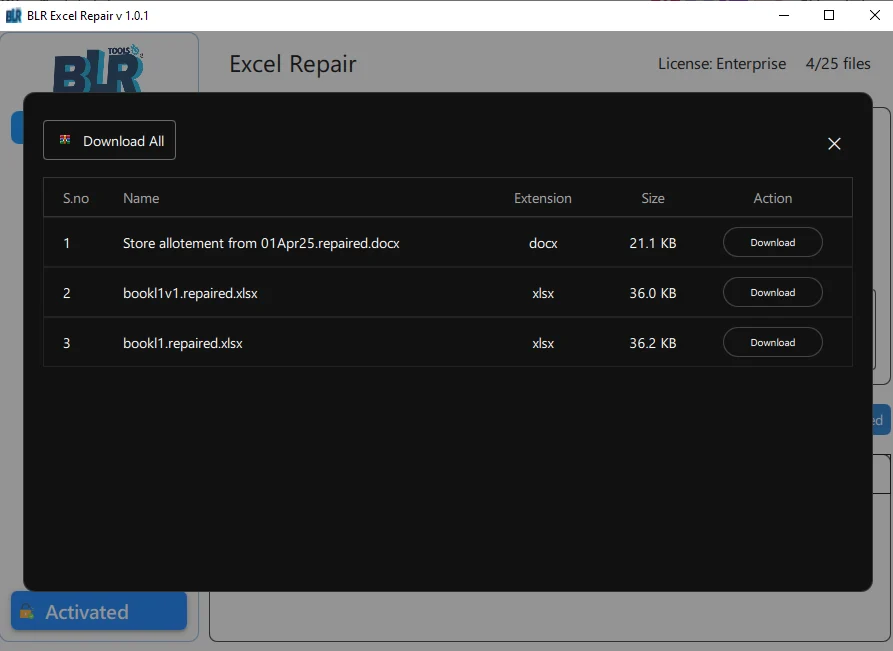
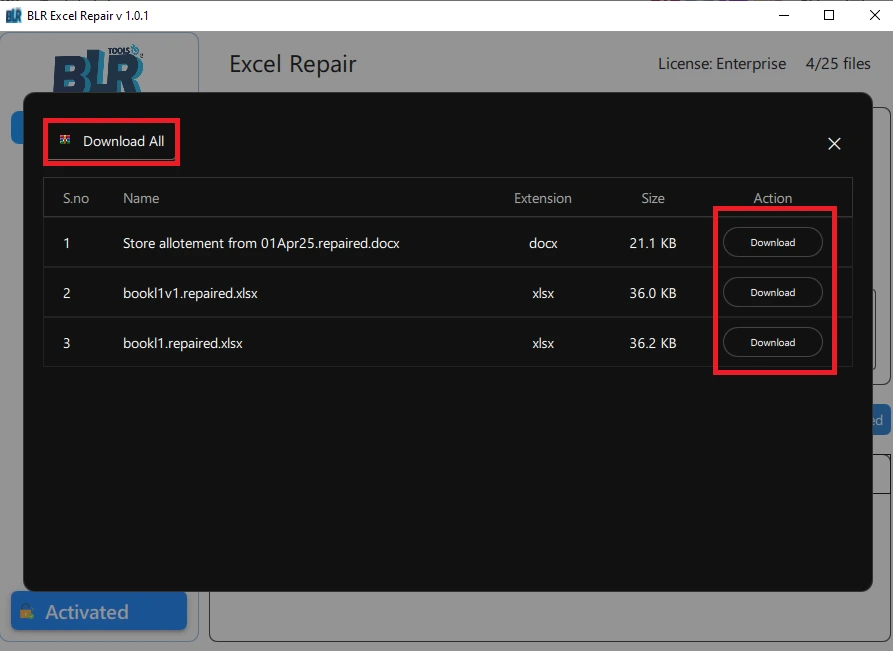
Here you can download the single repair file or download all the files at once in zip file.
-
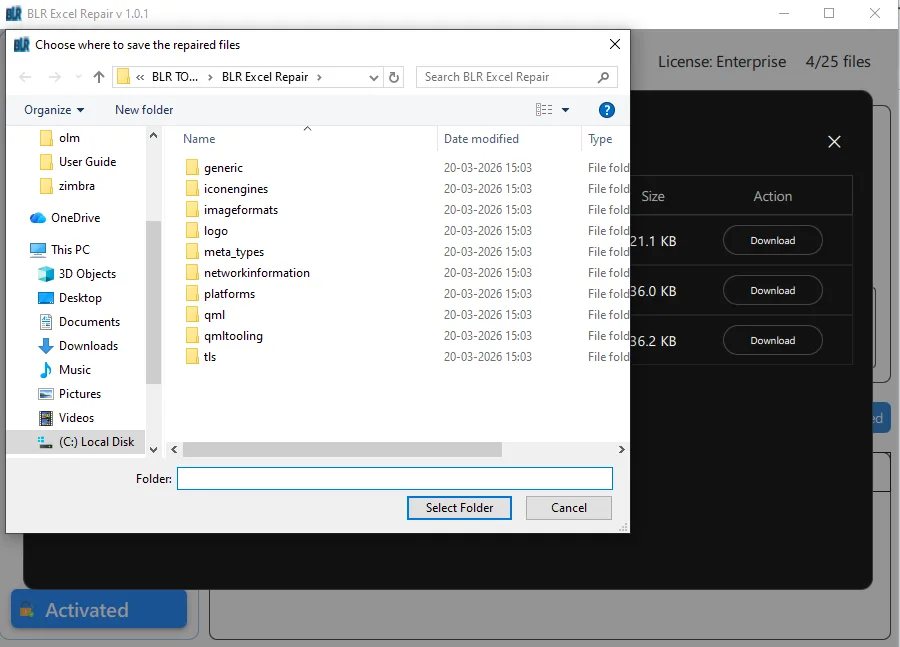
When you click on Download, a new window will appear; here, choose the saving location.
-
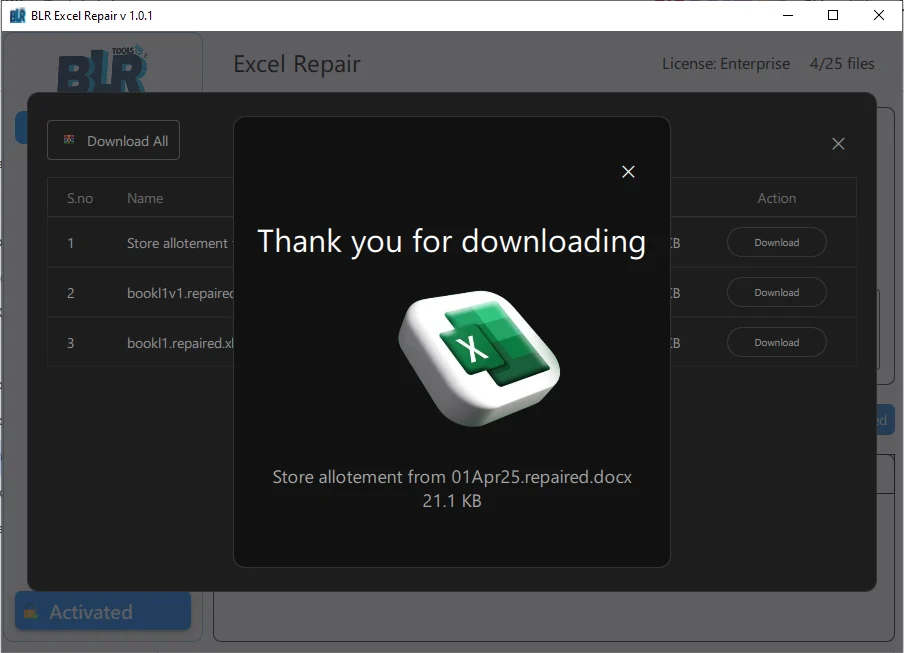
Here complete the Excel file repair process.
-
Here is the complete guide to repair corrupted Excel file.
FREQUENTLY ASKED QUESTION
Need Help? Find Answers Here
You can use the built-in Open and Repair tool to fix an Excel file that is broken. To open a file in Excel, go to File > Open, find the file you want, and then click the arrow next to the Open button and choose Open and Repair. Excel will try to fix the file and get back as much data as it can.
If an Excel file doesn't open, it could be because it is corrupt, in the wrong format, too big, or there are problems with the software. This problem can also happen with old versions of Excel or add-ins. Usually, safe mode or fixing the file will help.
Unexpected system shutdowns, power outages, virus or malware attacks, disk errors, or crashes while saving the file can all cause Excel files to become corrupted. The risk can also go up when you work with very large files or on networks that aren't very stable.
To use this feature, open Excel and go to File > Open. Click the small arrow next to the Open button after choosing the file you want to fix. Pick Open and Repair, then choose either Repair to get the file back or Extract Data to get the values and formulas back.
Excel does have an option for automatic recovery. To recover unsaved workbooks, go to File, then Info, then Manage Workbook. This will show files that have been saved temporarily and can be restored. But whether or not AutoSave or AutoRecover was turned on will affect recovery.
If Excel crashes, try starting it in safe mode by holding down the Ctrl key while you open it. You can also turn off add-ins, update Excel, or try to fix the file. Sometimes, opening the file on a different computer might work.
Make sure that the file type (like .xlsx or .xls) matches the file format. If you need to, try changing the name of the file or opening it in a different format. You can also open the file in a different spreadsheet program and save it again.
Yes, the repair feature in Excel is meant to get back as much data as possible. Some formatting or data may be lost, though, in cases of severe corruption. For full recovery, it is best to use backup copies or version history.
To restore an older version, right-click the file, choose Restore previous versions, and then choose a saved version. This works if Windows backup or version history is enabled.
To keep your work from getting lost, always save it often, turn on AutoSave, make backups, avoid forced shutdowns, and keep your system and Excel software up to date. Using storage devices that you can trust also lowers risk.