The BLR Data Recovery Tool is a strong and trustworthy way to get back data that has been lost, erased, or cannot be accessed from a number of storage devices. The utility makes sure that data can be safely and quickly recovered without losing its integrity, whether it was lost because of unintentional deletion, a system crash, formatting, or a virus attack.
The software can help you recover data from a number of storage devices, such as hard disks, SSDs, USB drives, memory cards, and other external media. It has an easy-to-use interface that makes it simple for both technical and non-technical users to recover data.
BLR Data Recovery Tool has a high success rate because it has features like deep scan, rapid recovery, preview before saving, and support for many file types. It is the best option for people, professionals, and corporations that want a safe and easy way to recover hidden lost data.
Key Features:
- A quick and easy recovery technique lets you get back files that were deleted, lost, or cannot be accessed right away.
- Get your data back without the risk of overwriting or damaging the original files.
- You can easily get back all of your crucial files, such as documents, photographs, movies, emails, and more, in one location.
- Get back data from hard disks, SSDs, USB drives, memory cards, and other devices that are not built into your computer.
- Advanced scanning technology can find and recover data even from disks that have been formatted or are very damaged.
- Before recovering files, look at them to make sure they are correct and only choose the ones you need.
- Easily get back data that was lost because to reformat, unintentional deletion, or a system crash.
- Recovers data that was lost because of partition loss, malware attacks, or system crashes.
- Built with strong algorithms to make sure that as much data as possible is recovered accurately.
- You don't need to know anything about computers to do a full data recovery in only a few clicks.
Software Installation
-
First of all, download the software on your Windows system from the given link https://www.blrtools.com/data-recovery-wizard.html
Or you can download using this link https://www.blrtools.com/dl/blr-data-recovery-free-trial.exe
-
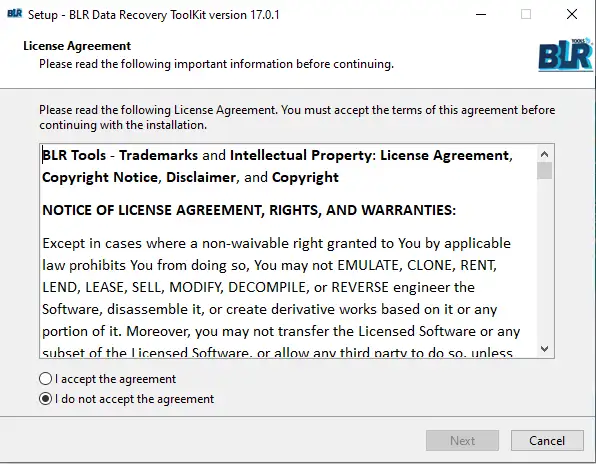
After you download the application and run the installer, a new window will appear.
-
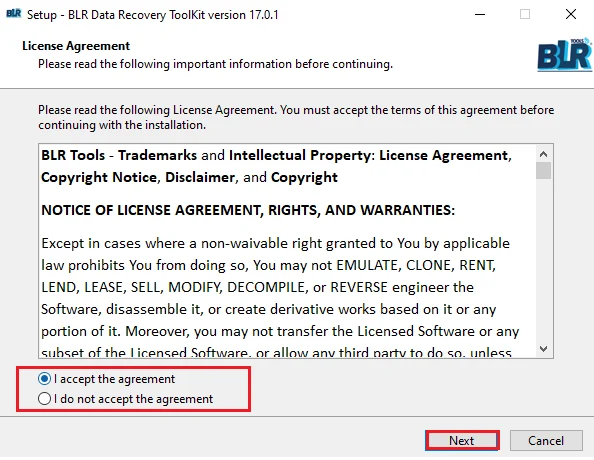
Now select “I accept the agreement” radio button and click on the Next button.
-
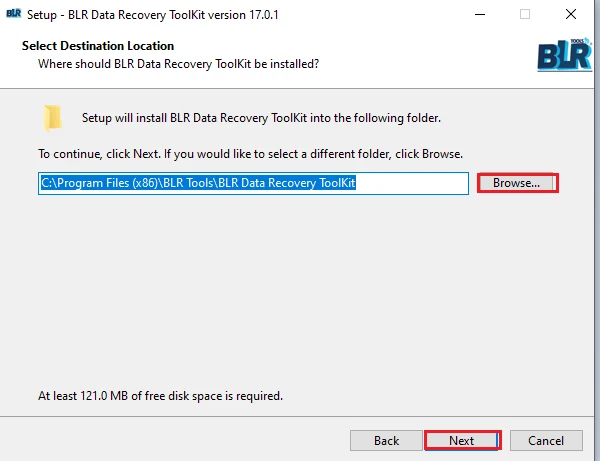
Select the location where you want to you want BLR Data Recovery Tool to be installed.
-
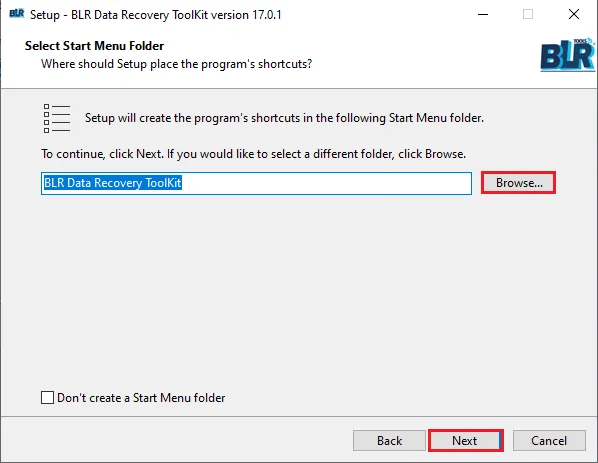
Choose the folder where you want to set up the program shortcuts.
-
Now click on the Install button to start the installation process..
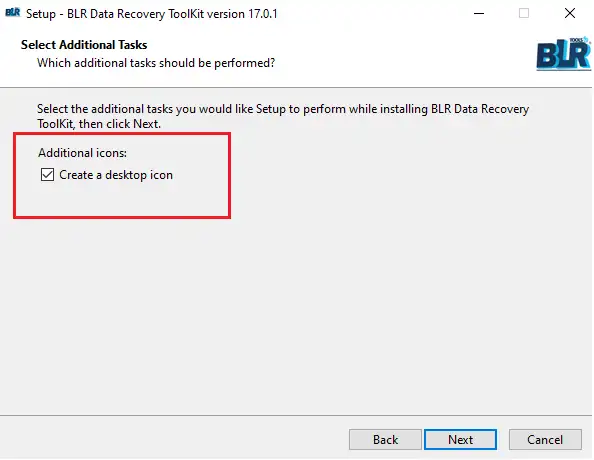
-
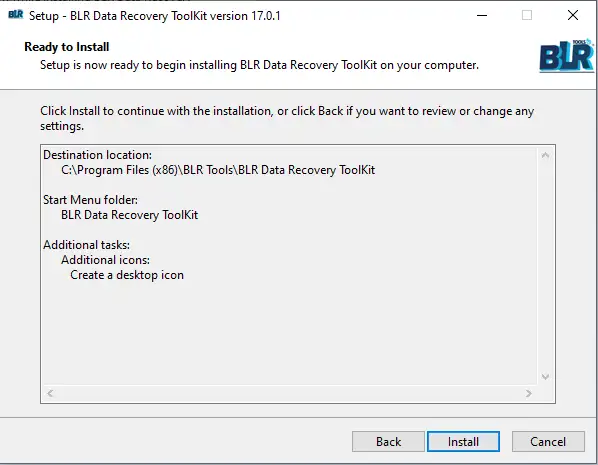
Click on the Install button and ready for the installation.
-
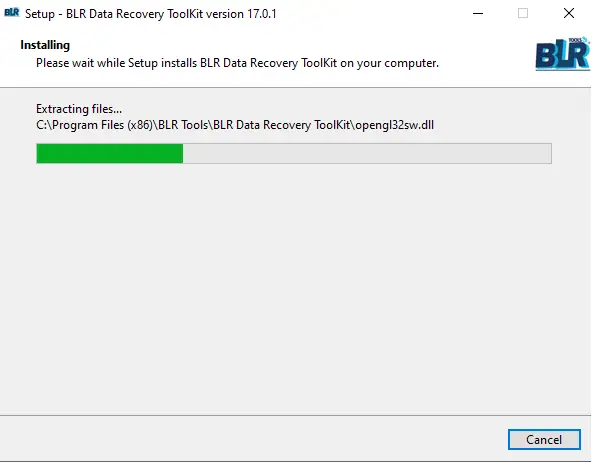
After clicking the Install button, the tool will start installing on your system.
-
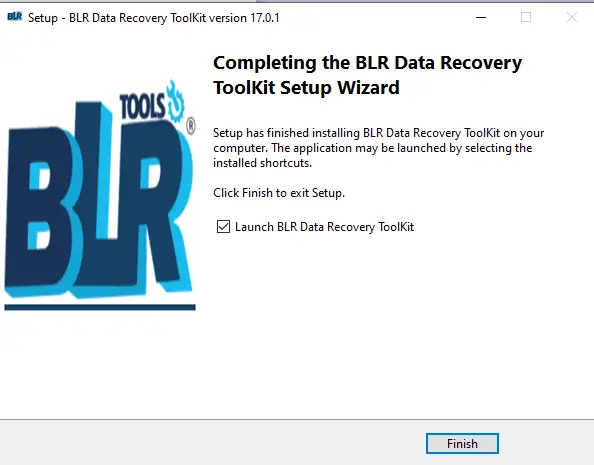
Here, complete the installation process. Now, click on the Finish button to open the tool.
Software Uninstallation
Here are the steps to uninstall the software from your system:
- Open the Control Panel on your system.
- Click Uninstall a program under a Program section.
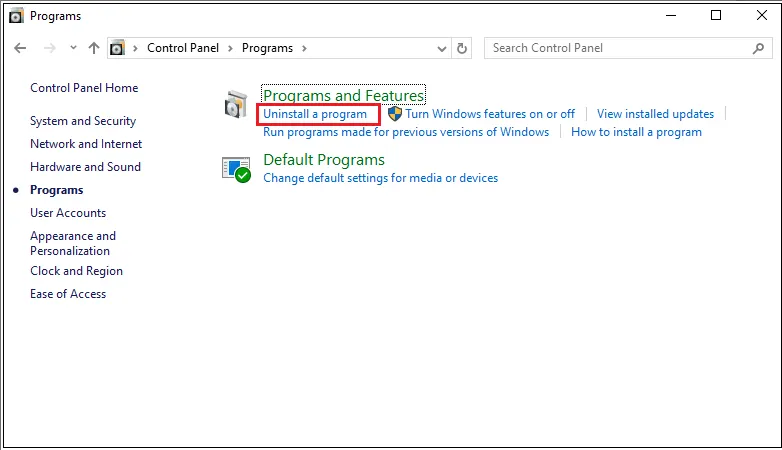
- Click on the three dots beside BLR Data Recovery Toolkit from the list and click on it.
- Click Uninstall/Change, the software will ask for your permission, click Yes to accept.
System Specifications
To install and run the tool on your system, you need to meet some minimum software requirements.
- Processor: Intel 4.2 GHz or i3 6th Gen 2.4 GHz or higher recommended
- Memory: 4 GB recommended (2 GB minimum)
- Hard Disk: 500 MB for installation files
- Operating System: Windows 11, 10, 8.1, 8 and earlier versions
- Language Supported: English
Step-by-Step Guide to Use the Software
Here are the simple instructions to use the BLR Data Recovery Toolkit for conversion.
-
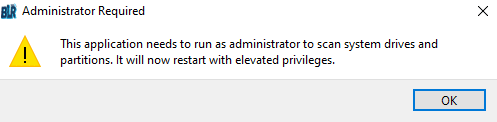
After you install the tool, it will ask for administration permission.
-
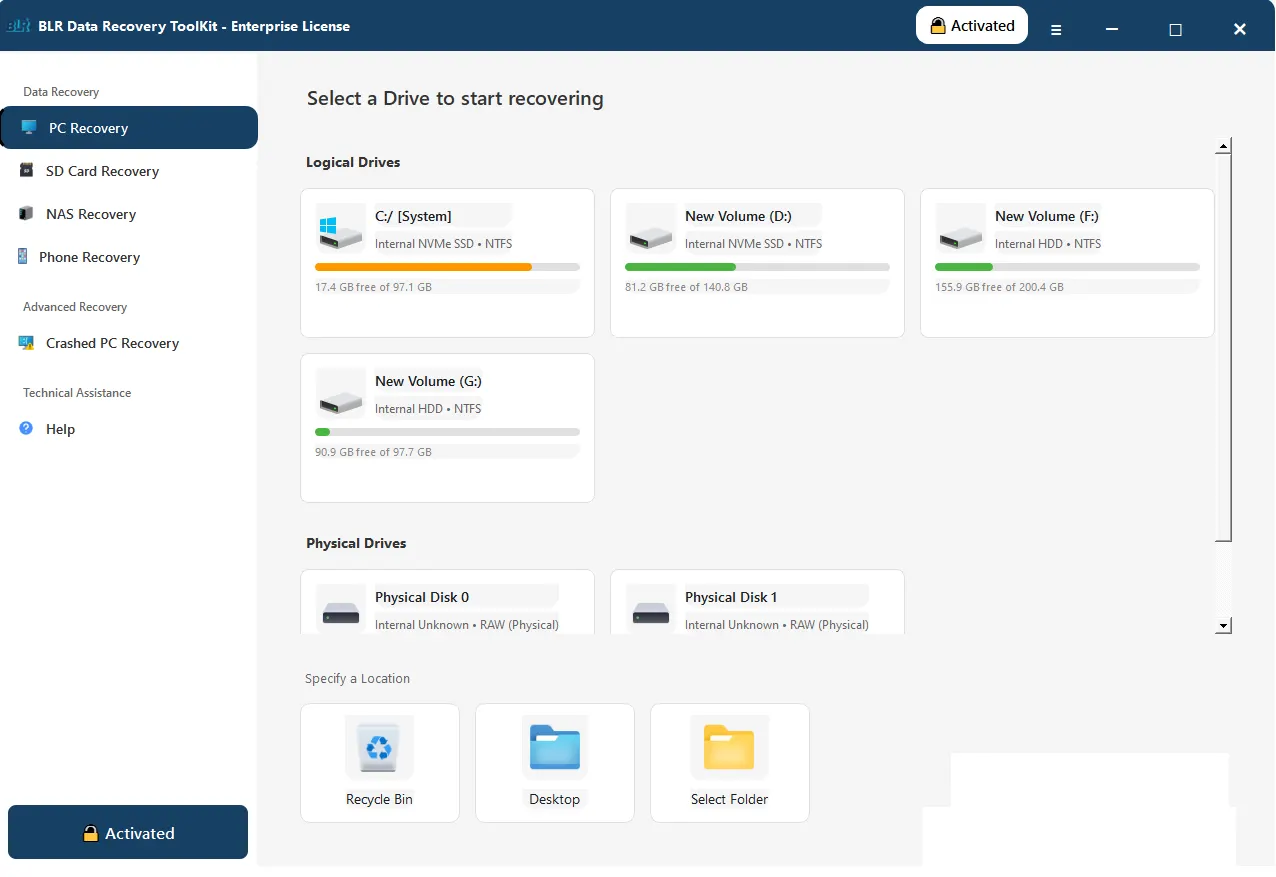
Here is the home page of the software. Let’s start the process.
-
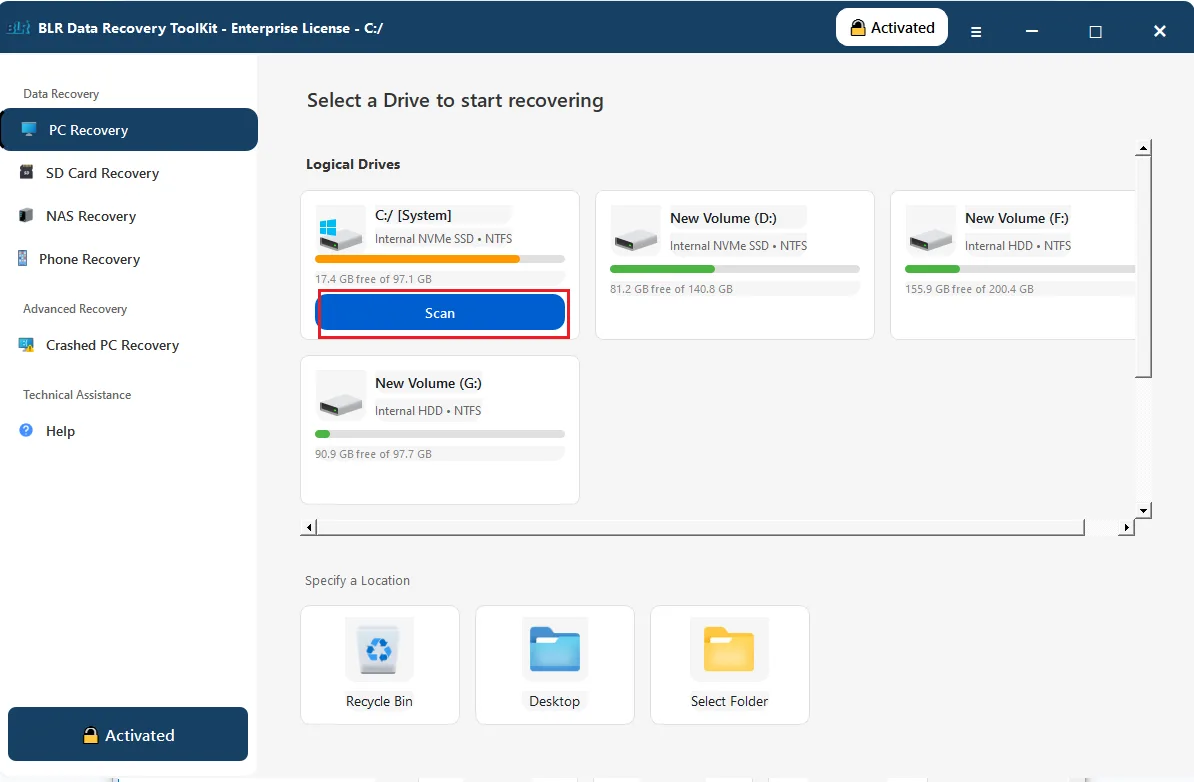
Here you can choose from multiple options to select the location from which you want to recover your lost or deleted data.
-
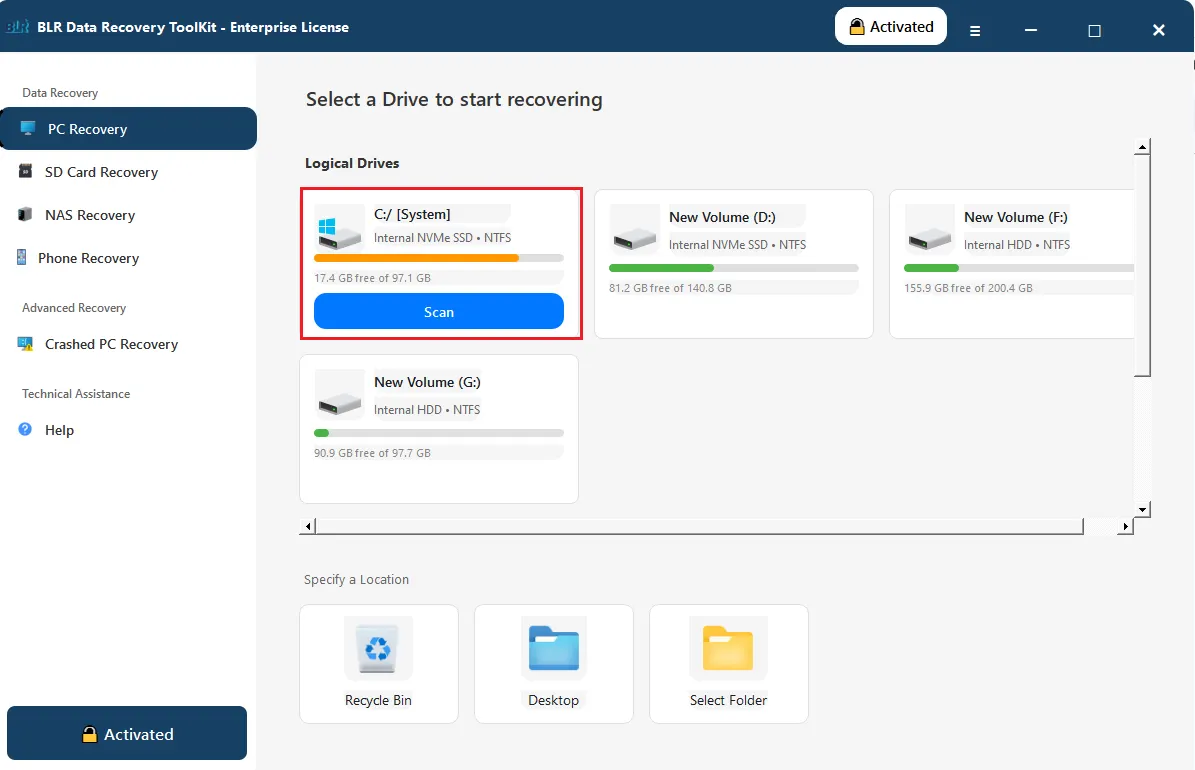
To start the process, click on the Scan button to start scanning your drive.
-
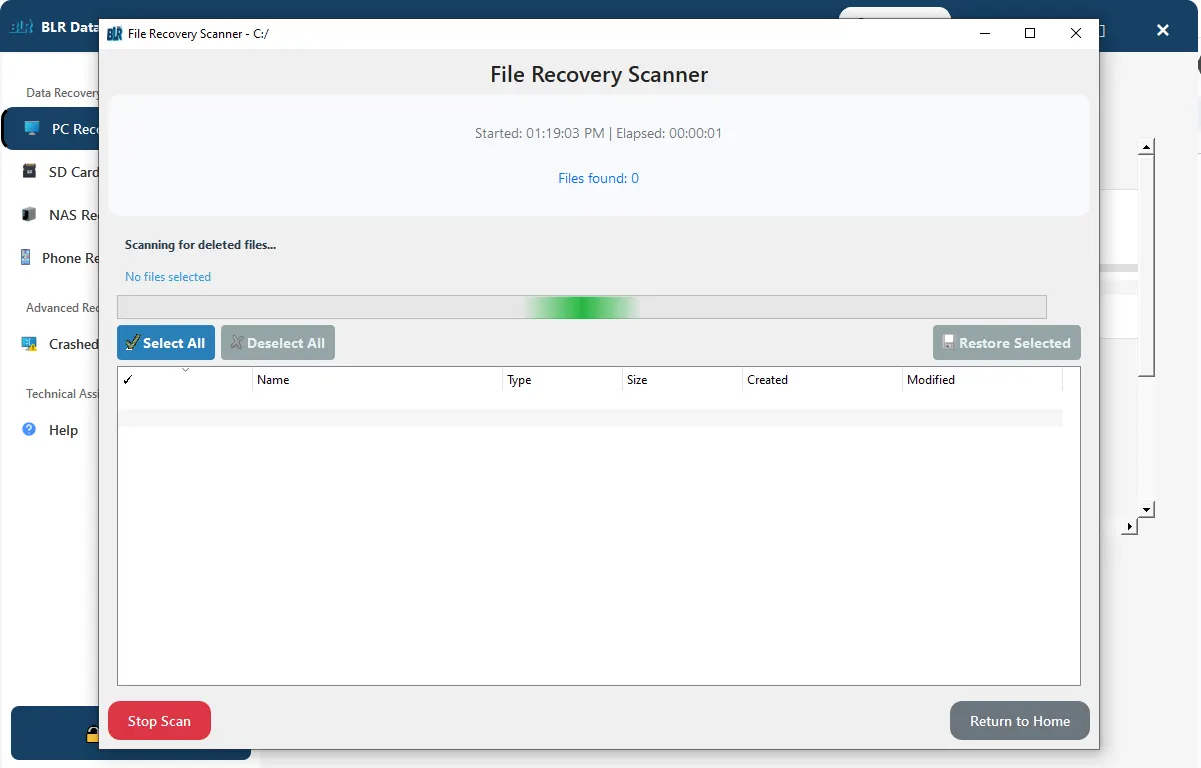
This tool will start scanning your drive and find the files that are deleted and lost.
-
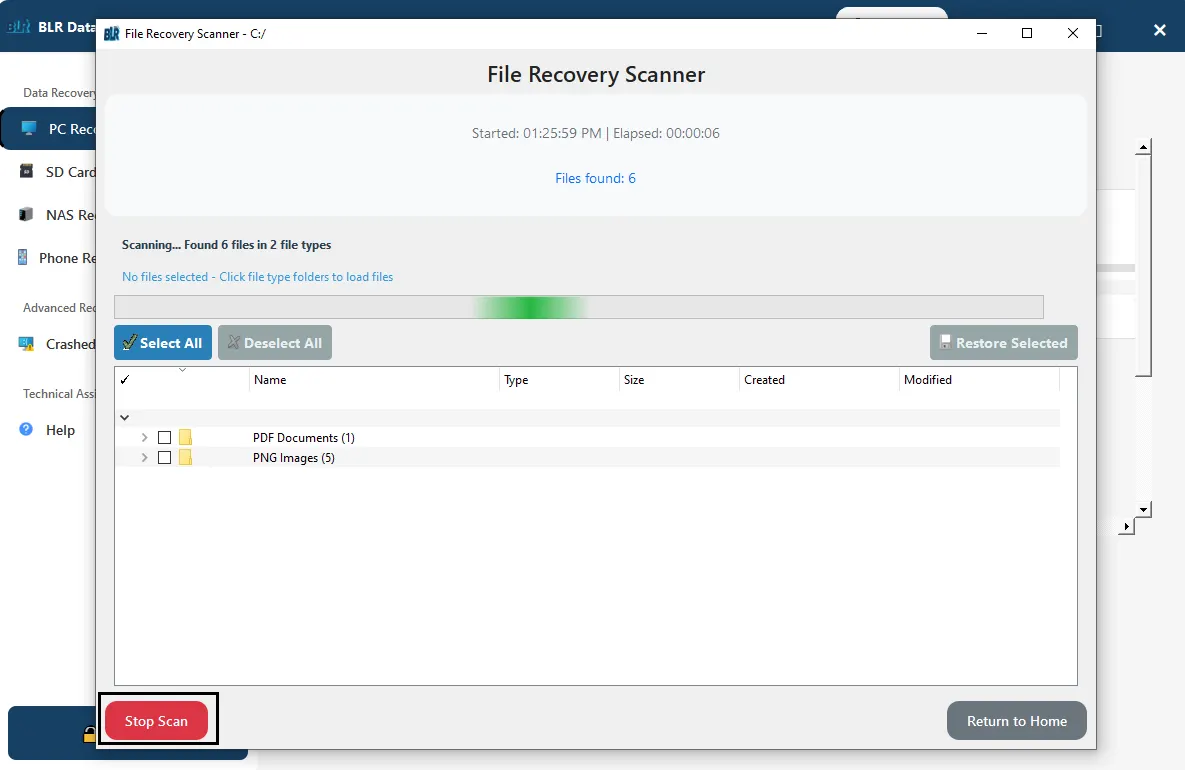
If you want to stop the scanning process, you can click on the pause button.
-
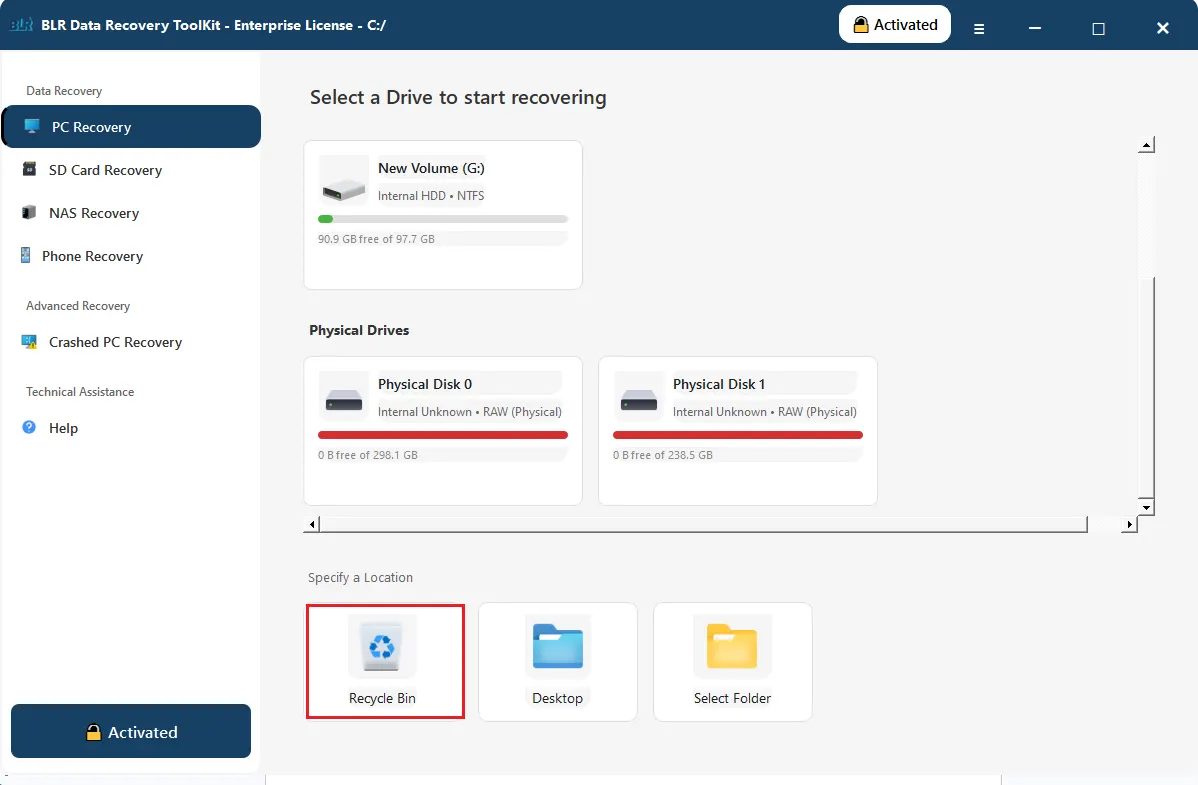
If you want to recover data from the Recycle bin, then you can choose the option.
-
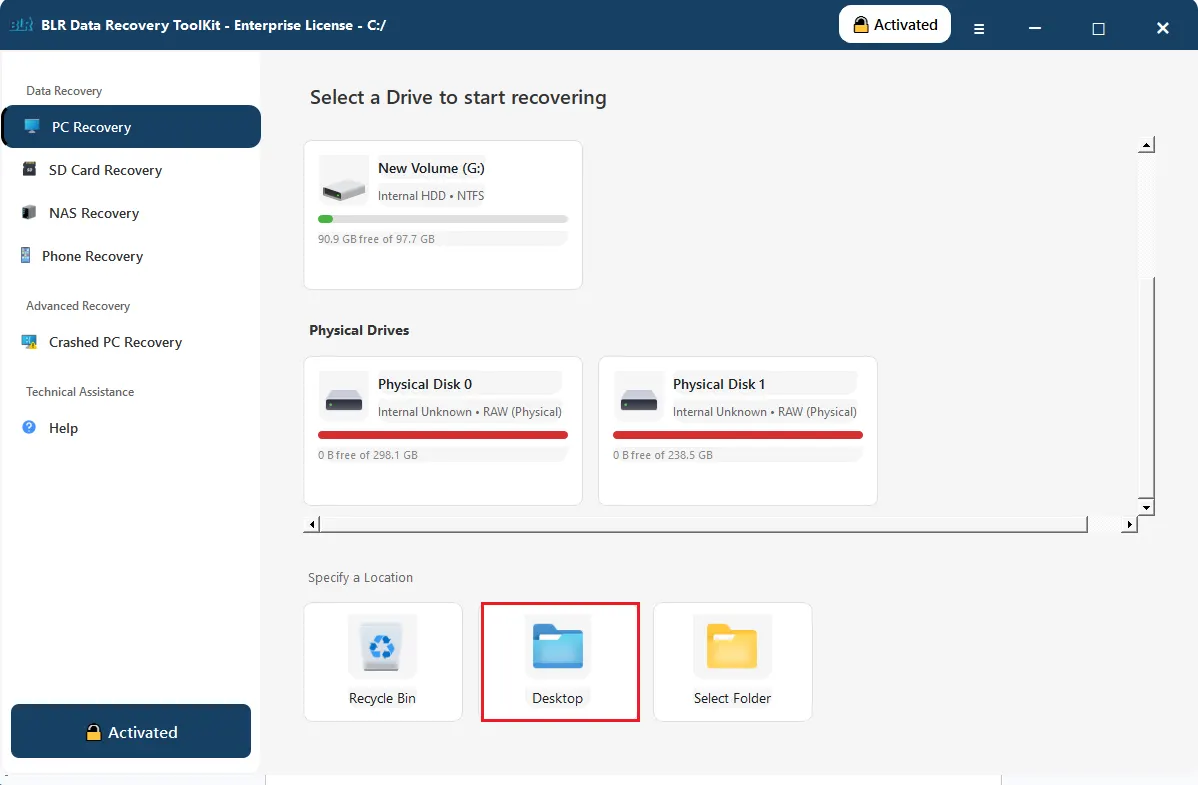
You can also recover the deleted data from your desktop.
-
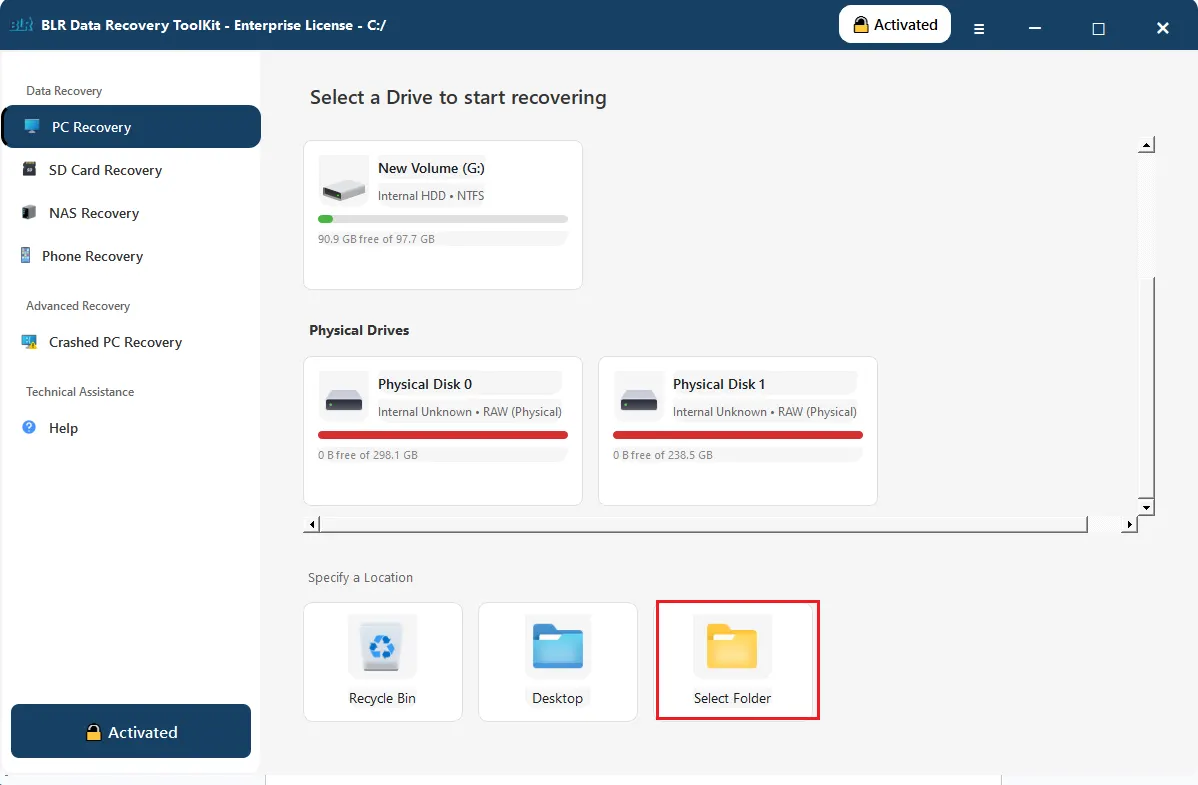
You can also select the folder for data recovery.
-
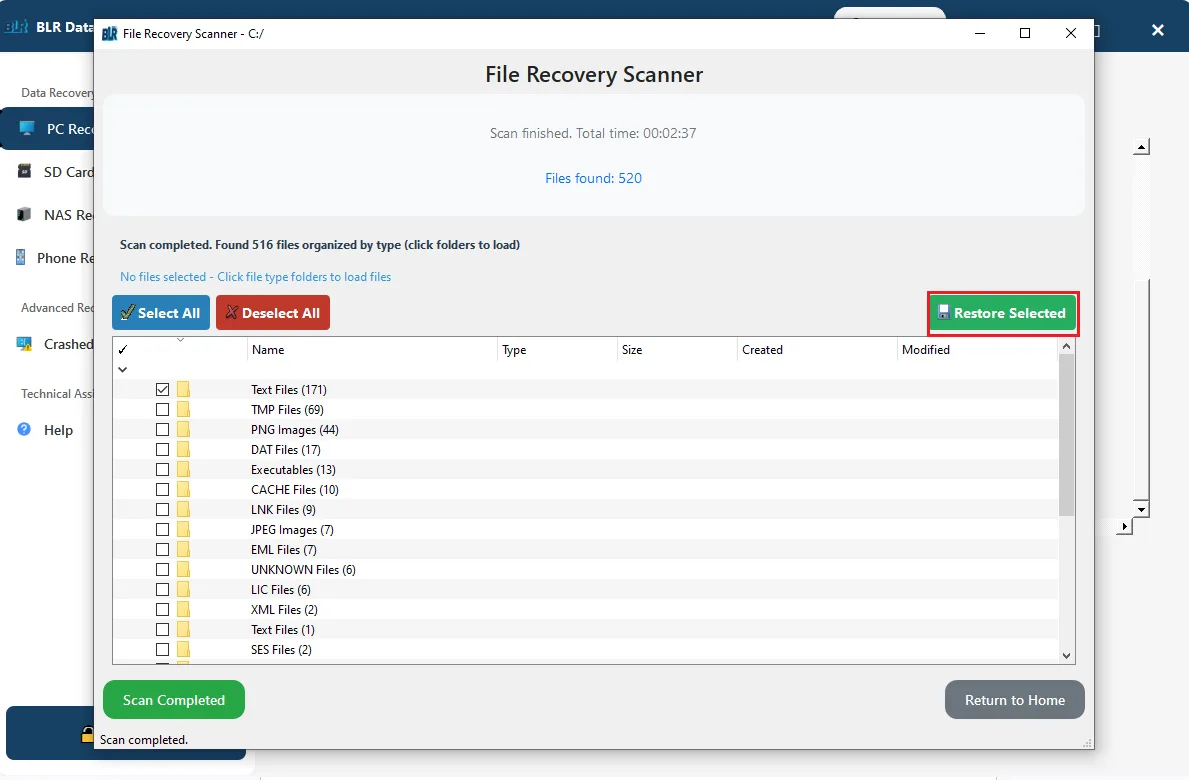
After the scanning, you can select the files that you want to restore.
-
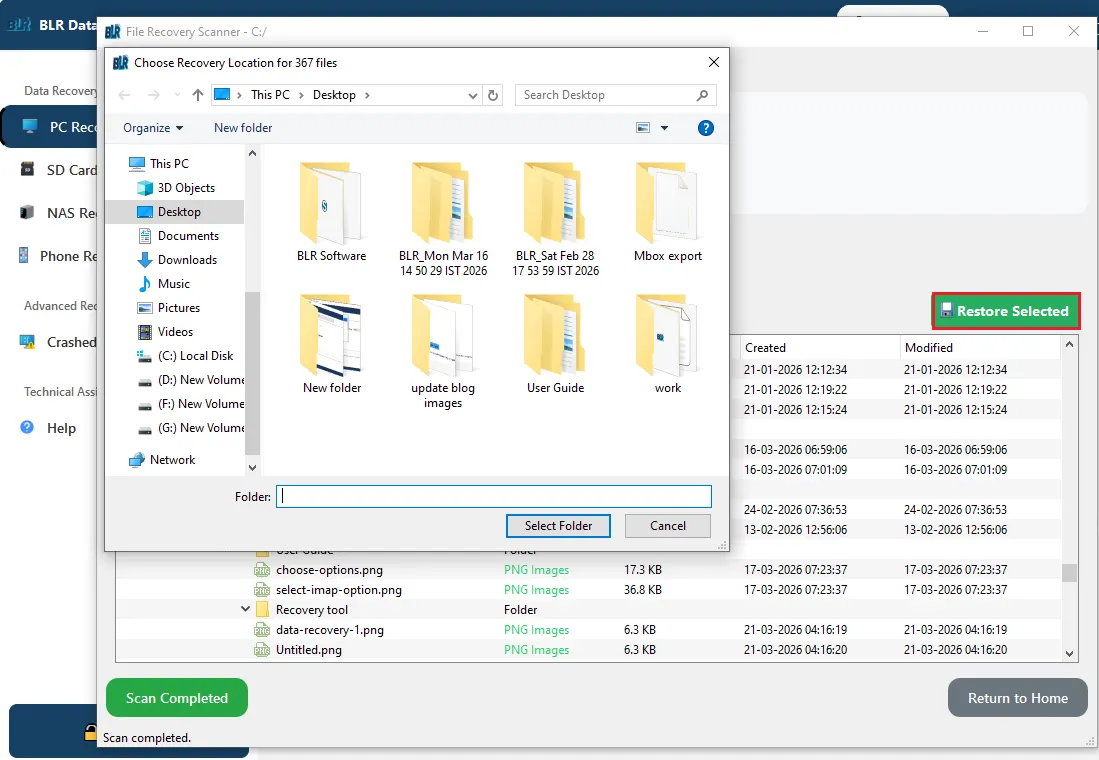
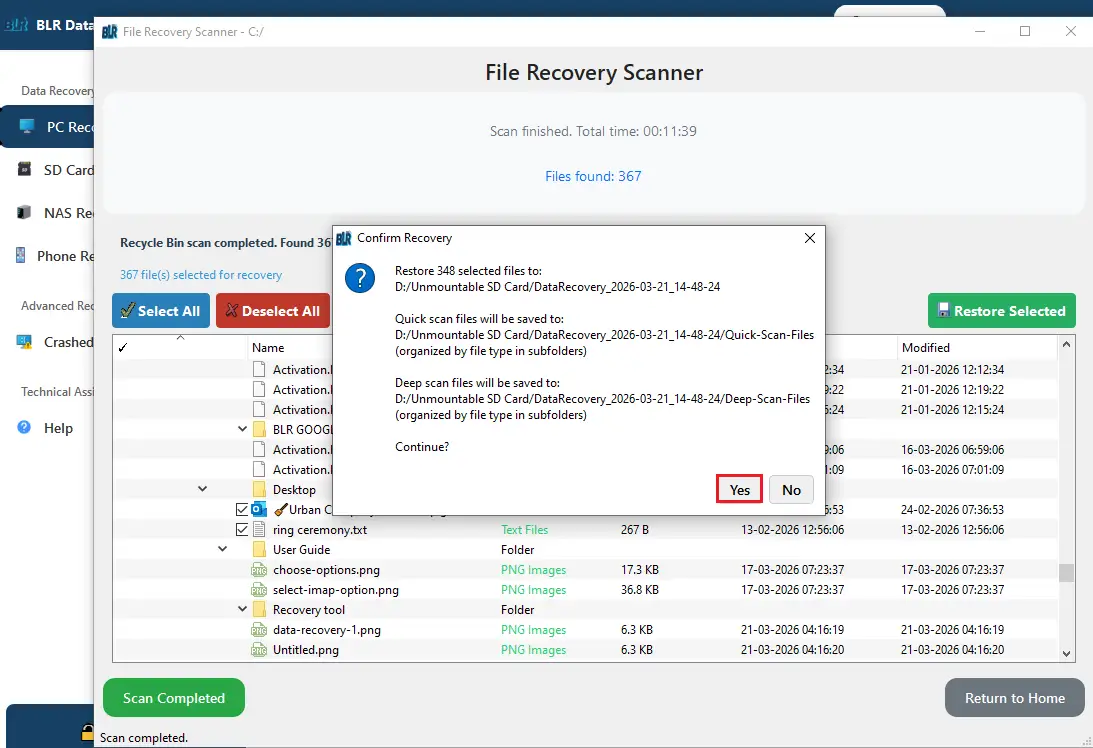
Then click on Restore selected and choose the location.
-
Click on the yes option and confirm the recovery.
-
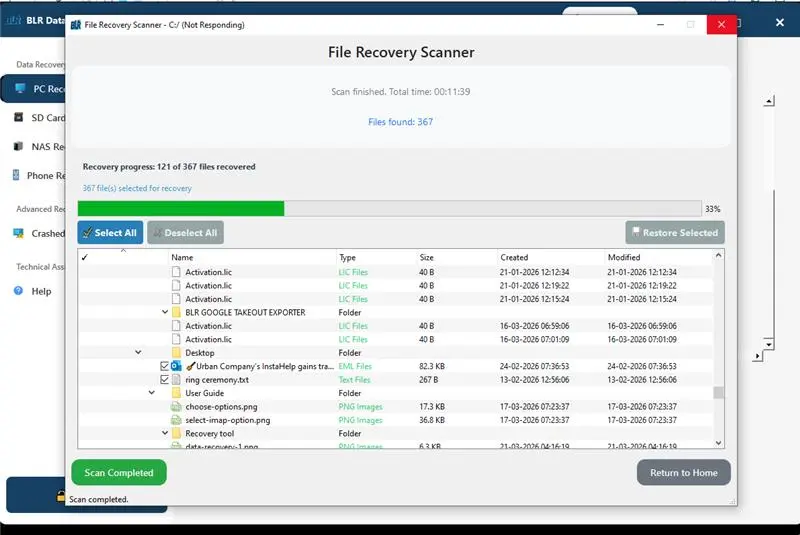
Here start the recovery of your lost or deleted data with BLR Data Recovery Toolkit.
-
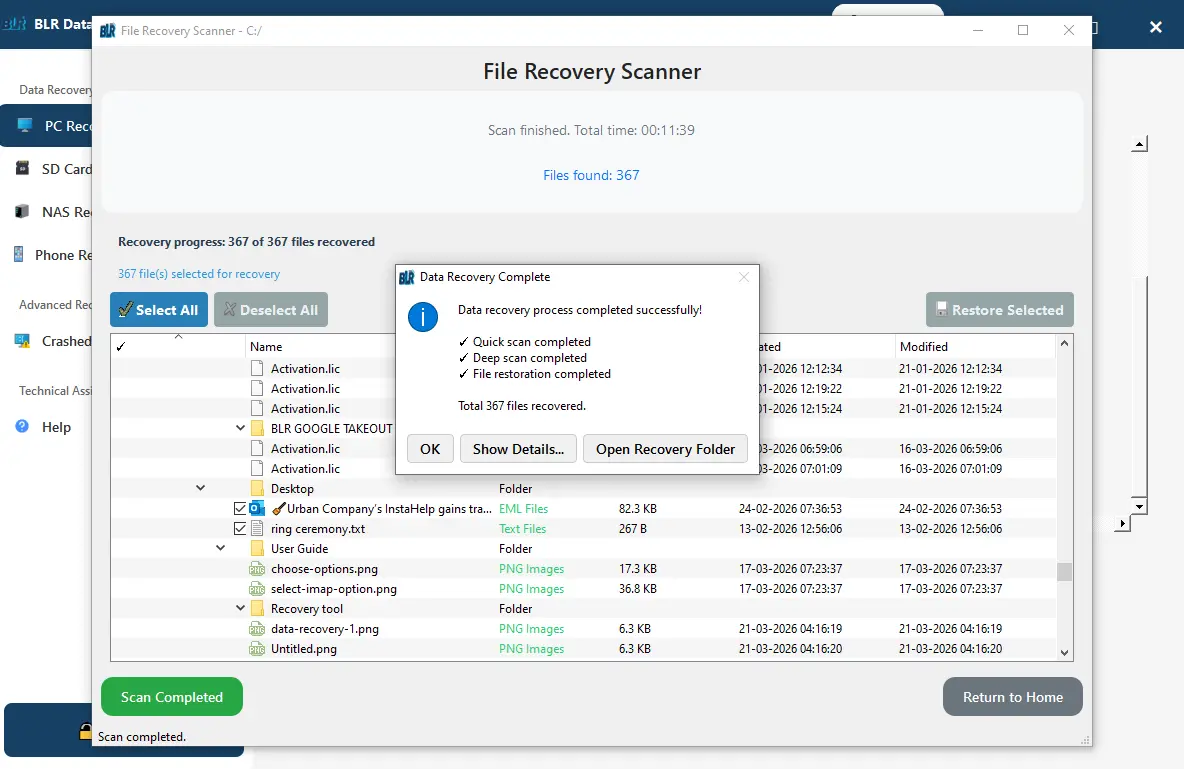
Here you can find the log report or you can view the recovered data.
BLR Data Recovery Toolkit Working Video
Working details regarding hardware and software compatibility go here.
FREQUENTLY ASKED QUESTION
Need Help? Find Answers Here
A Data Recovery Toolkit is a set of tools and features that can help you get back data that has been lost, deleted, or corrupted from storage devices like hard drives, USB drives, memory cards, or external disks.
The BLR Data Recovery toolkit can get back different kinds of files, like documents, spreadsheets, pictures, videos, audio files, and emails. How the data was lost and whether it has been overwritten will determine how successful the recovery is.
It scans the chosen storage device for files that have been lost or deleted. The tool finds data that can be recovered and lets you view and restore files at your desired location.
Stop using the drive. In a lot of cases, you can get back files that have been permanently deleted, especially if new data hasn't overwritten them. After losing data, you should stop using the device right away.
Yes, the tool is safe to use because they only read your data without any hassle. But you should always get tools from sources you can trust.
A quick scan looks for files that have been deleted recently, while a deep scan goes through the storage device in great detail to find files that have been lost because of formatting, corruption, or severe damage.
If the data has been overwritten, the storage device is broken, or the file system is very corrupted, it might not be possible to recover it.